Settings
Parent Settings
Many settings can be affected by its parent layer's settings. Depending upon the setting the layer's setting is either added to or multiplied by its parent's setting. If by default the value is 0 on the Group layer then it will be added to its children's settings (Seed, Offset, Distance Min). If the value is 1 by default on the Group layer then it will multiply its children's settings (Scale, Viewport Amount, Preview Radius). Rotation should be thought of as additive.
Settings
Distance Mininimum

How close each object can be. See the Distance Min setting of the Distribute Points on Faces node in Blender's Manual
Only visible if Use Asset Radius is disabled
Use Asset Radius
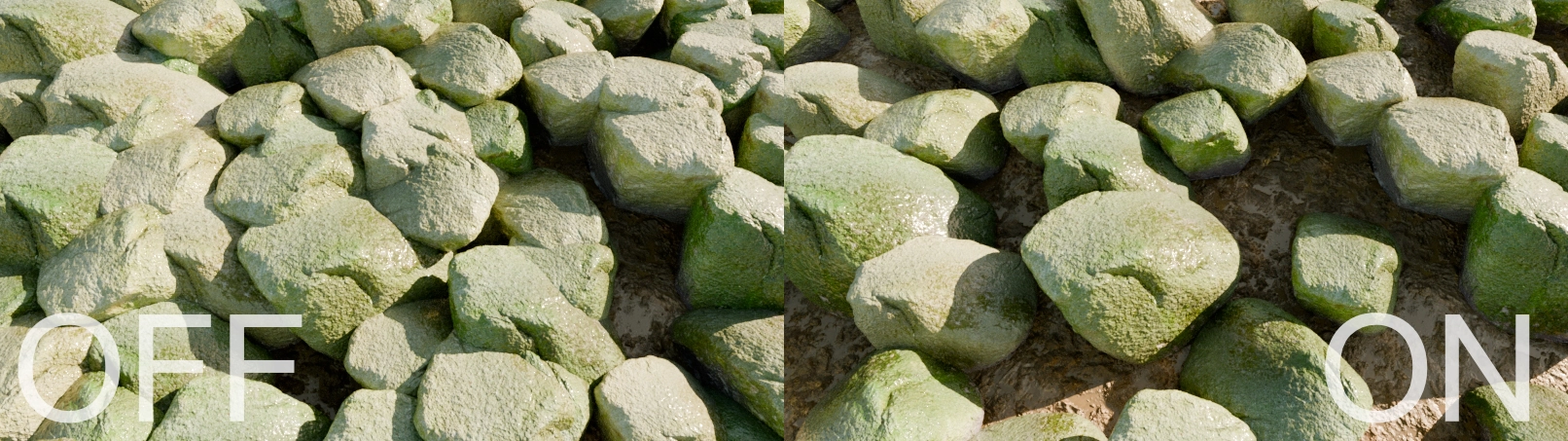
Use the largest radius of each of the Layer Objects as the Distance Minimum setting ensuring the minimal amount of overlap between Layer objects in this layer
Asset Radius Offset
Vary the minimum distance outside of each object's radius.
Only visible if Use Asset Radius is enabled
Render Target
Maximum number of instances. A Distance Minimum greater than 0 may produced significantly less than the Render Target
Only visible in non-group layers
Use Density
Use a target density setting instead of target amount ie how many per Blender unit instead of how many total. Useful for grass or forests.
Density Target
The amount per Blender unit, though this is impacted by Masks and Distance Minimum
Scatter Amount
Vary the amount of scattered assets per child layer
Only visible in group layers
Seed (Location)
Randomize the location of each object
Viewport Target
Maximum target number of instances allowed in the viewport. Will render full amount.
Only visible in non-group layers
Viewport Amount
Percentage of particles to display in viewport
Preview Radius
Set the radius of each particle sphere for when displaying the spheres in the viewport
Normal Blur Amount

Smooth out the normals in order to get less chaotic normal rotations. This will effect any settings that deal with normals.
Offset
Offset (Minimum)

How much to offset each asset. This value acts as the minimum offset value if randomize is greater than 0.
Along Normal
Amount the Offset value should follow the underlying face's normal direction versus the up direction. This is effected by the Normal Blur Amount.
Max Offset (Randomize)
The maximum value relative to the Offset value an instance can be offset.
Randomize (Amount)
Amount to randomly offset assets
Seed (Randomize)
Changes the randomize amount for each asset's offset
Scale
Scale
Amount to scale each asset
Use World
Keep asset scale the same regardless of object scale
Minimum (Randomizing)
The minimum size to randomly scale to relative to the Scale value
Maximum (Randomizing)
The maximum size to randomly scale to relative to the Scale value
Randomize (Amount)
Amount to randomly resize assets
Seed (Randomize)
Changes the randomize amount for each asset's scale
Rotation
Rotation

Amount to rotate each asset. The Z axis value is the setting in the header of the Rotation dropdown. The X and Y axis values are inside the Rotation dropdown.
Normal Amount

Amount to align the assets to their face's normal. This is effected by the Normal Blur Amount.
Minimum (Randomize)
Minimum amount to randomize rotation
Maximum (Randomize)
Maximum amount to randomize rotationn
Randomize (Amount)
Amount to actually randomize. Randomization is relative to the Rotation value
Split Randomize Amount
Set the amount of randomization per axis
Seed (Randomize)
Changes the randomize amount for each asset
Snap To
Round each asset to the nearest multiple of the degree. Ex: 180° will snap assets to either 180° or 0/360°. Whichever is closest.
Child settings of anything greater than 0° will override its parents' Snap To settings. There is no combining of the values.
Rotation Modifiers
See the Rotation Modifiers page.