Masks
Base Mask Settings

The base settings most if not all masks have
Opacity
The extent of influence a mask has on the final output. It determines the strength or intensity of the mask's effect on the overall result. By adjusting the opactiy, you can control how much the mask contributes to the final output of the process.
Invert
Swap the values of a mask. In this operation, the original values that are set to 0 will now become 1, and vice versa. This results in an inverted representation of the mask, effectively flipping its influence on the output.
Add
Enabling the "Add" option will incorporate this mask's effect to the previous masks, effectively adding its influence to the cumulative result. On the other hand, when the "Add" option is disabled, this mask's effect will be subtracted from the cumulative effect of the previous masks.
Adding Two Height Masks Together Example

Adding Two Height Masks Together Example
In the given scenario with two height masks, by default, the combined result will display areas that are white (1) in both masks. In other words, the intersection of the two masks determines the visible areas.
However, if Add is enabled, the resulting combination will behave differently. Instead of using the intersection of the masks, Add treats the masks as additive factors. If an area is white (1) in the current layer, it will remain white when combined with the previous masks, regardless of their values in that specific area. This approach is akin to addition, where 0 + 1 = 1.
For the topmost layer (no previous layer), enabling Add will lead to all areas becoming white (1) since there are no previous masks to affect the outcome.

Reset Value to Default
This button allows you to reset the value associated with it to its default state, which corresponds to the value it had when originally added. Selecting this option will restore the button's setting to its initial configuration.
Falloff Easing
See Easing Functions for more information.
Randomize
See Randomize Settings for more information.
Attribute
Attribute
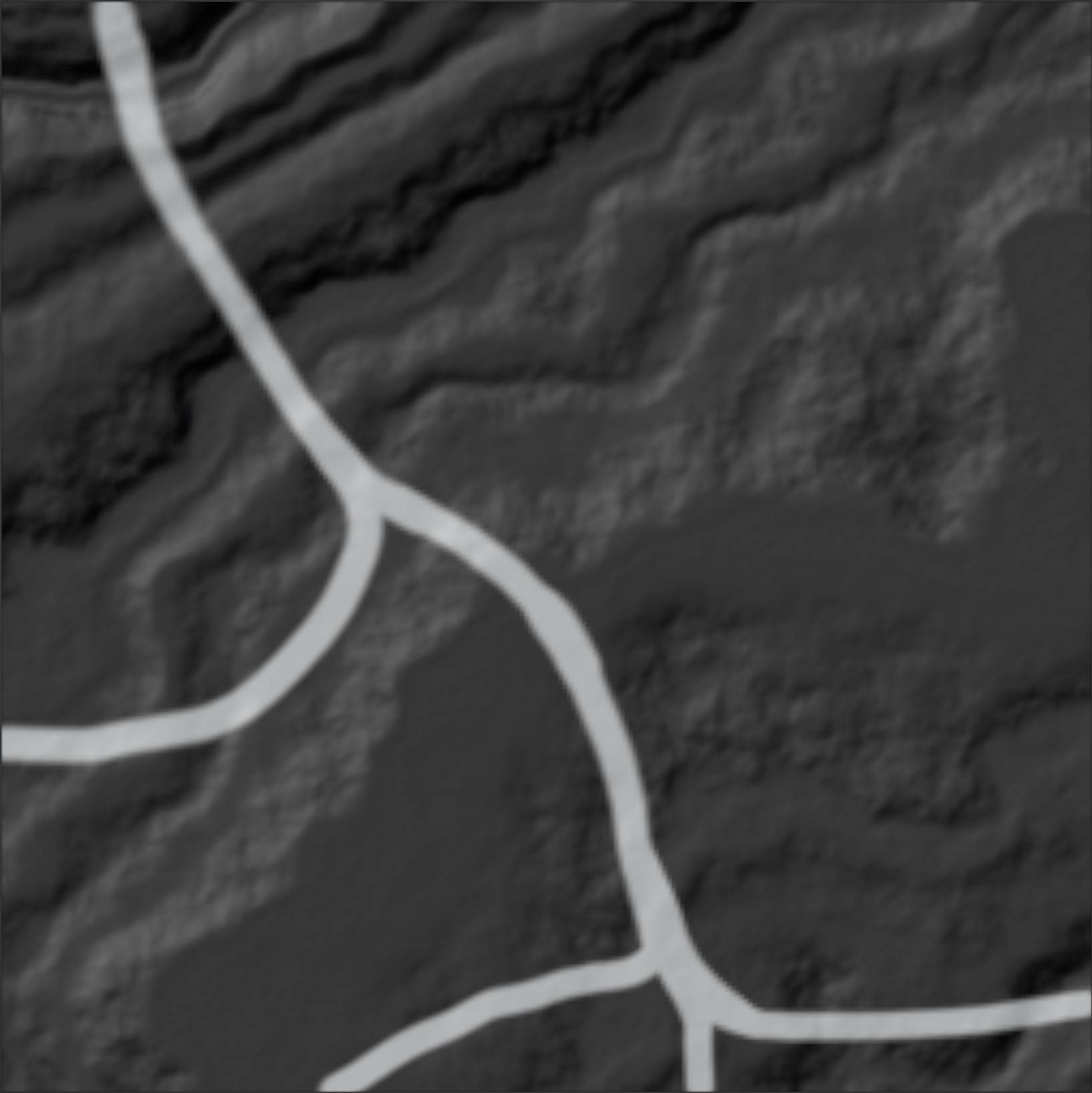
The attribute to use as a mask.
Paint Attribute
This is a work around until Blender makes their own attribute painting system and allows for editing attributes created in geometry nodes.
Edit the attribute mask if one is selected, otherwise create a new one and edit.
Things to be aware of for this work around:
This operator creates a duplicate mesh that stores the attributes on it for this terrain. This mesh is not updated again until the button is pressed. See the Advanced settings below for alternative options to deal with the mesh not updating.
From Min
The lower bound of the range to remap from.
From Max
The higher bound of the range to remap from.
To Min
The lower bound of the target range.
To Max
The higher bound of the target range.
Advanced
Only visible after using the Paint Attribute button
Keep Dimensions
Scale the attribute mask to match the dimensions of the terrain regardless of changes after the fact
Same Topology Override
Force using ray casting as method to grab the attribute. Don't assume the meshes have the same topology.
Ray Length
Distance to look for the attribute mesh
Camera Culling Mask
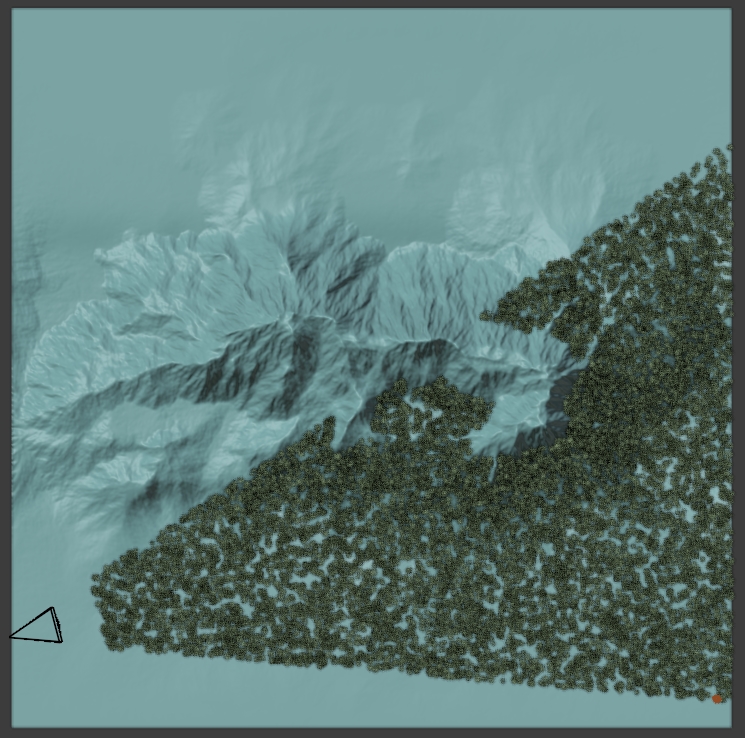
Only show assets that can be seen by the camera.
Culling Type
- Simple: The fastest (relatively) way to limit the assets at the degredation of accuracy. Does not work for orthographic cameras
- Main: Second fastest culling algorithm without any accuracy issues. Does not work for orthographic cameras.
- Raycast: The most feature rich culling algorithm at the cost of being slightly slower.
Use Custom Camera
Use a camera other than the active scene camera. Leaving this disabled will always use the scene camera even if it changes.
Camera
The custom camera to use instead of the scene camera
Padding
Expand outside of the camera's bounds to ensure all assets are included
Use Backface Culling
Cull assets on faces pointing away from the camera
Backface Threshold
Vary how far away from the camera an asset's closest face must be pointing in order to be culled. Independent of the asset's actual rotation.
Terrain Culling
Cull assets whose origins are blocked by the camera via the terrain. This may be inaccurate as the origins (bottoms) of the assets may be hidden by the terrain but the top of the assets may still be visible.
Use Scatter Close to Camera
This modifier only looks at an asset's origin to decide if it is visible to the camera which means some assets that are close to the camera may be culled due to their orgin's being below the camera but the asset itself may still be visible. Enabling this allows for those assets to still show up.
Distance (Scatter Close to Camera)
Distance away from the camera (in 3D space) assets should still be displayed.
Distance Mask

Use the distance from an object to mask the current layer
Object
Select the desired object that will serve as the center of the distance mask, where the values will be set to 1.0. This selected object will act as the focal point for the distance mask, with its associated values set to 1.0.
Distance
How far out to fade out
Min Density
The multiplier at the end of distance and to eternity. This effectively lets in more of the previous layers
Max Density
This multiplier at the object.
Height

Split Falloff
Use different falloff values for minimum and maximum
Split Randomize
Use different radomize settings for minimum and maximum
Min Height
The lower limit of the mask
Max Height
The upper limit of the mask
Normal

Normal Picker
Choose a normal by clicking on a place on the terrain
Target
The normal vector that is being targeted.
Threshold
Permits vectors that are in proximity to the designated Target to be included as well.
Path
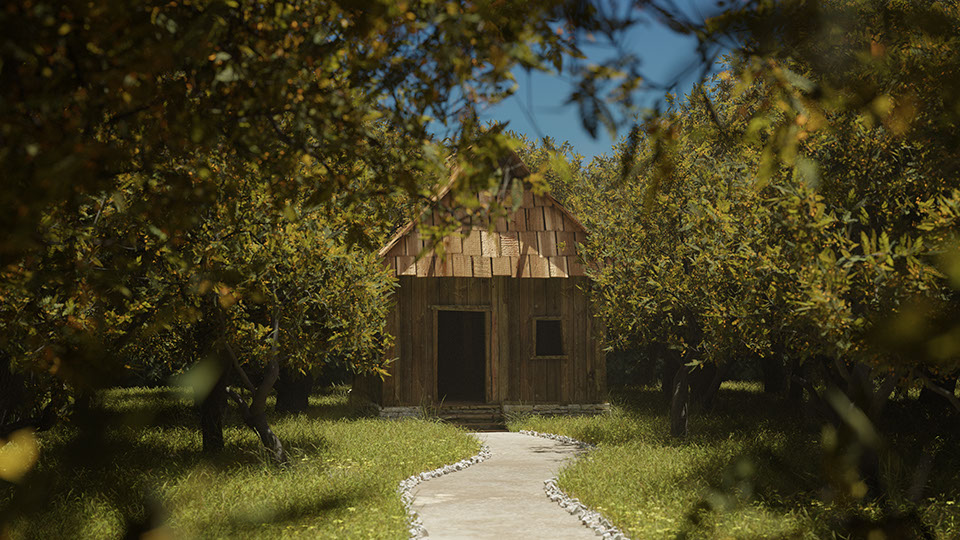
Curve
The curve to use for the path
Draw Curve
Easily set it up for drawing a curve object for the path.
Resolution
Change the resolution of the curve for smoother lines.
Distance
How far from the curve the path should extend.
Distance Mode
Where to pull the distance
-
Relative Radius (Default): Distance works as a multiplier of the radius of each control point. The default radius of a control point is 1 so if no control points are set this will act exactly like the Distance setting.
-
Distance: The path will extend exactly the amount from the curve as set
-
Radius: The radius of each control point alone affects the distance
Remap Values
The Remap Values mask is more of a modifier to the masks than a mask itself. It does not add or remove anything to the mask but instead edits the values as they exist up to this point in the stack.
This mask modifer edits the values in 3 possible ways:
Map Range
Utilize From Min/Max and To Min/Max values to modify the range of the mask's values. This method allows you to remap the existing range to a new range.
Easing
Employ predefined curves or create a custom curve to adjust the range of values. Easing functions enable you to control the smoothness or sharpness of the transition between values.
See Easing Functions for more information.
Ramp
Use a ramp to manipulate the range of values. By configuring the ramp's control points, you can reshape the mask's values to suit your requirements.
Scatter Around Mask
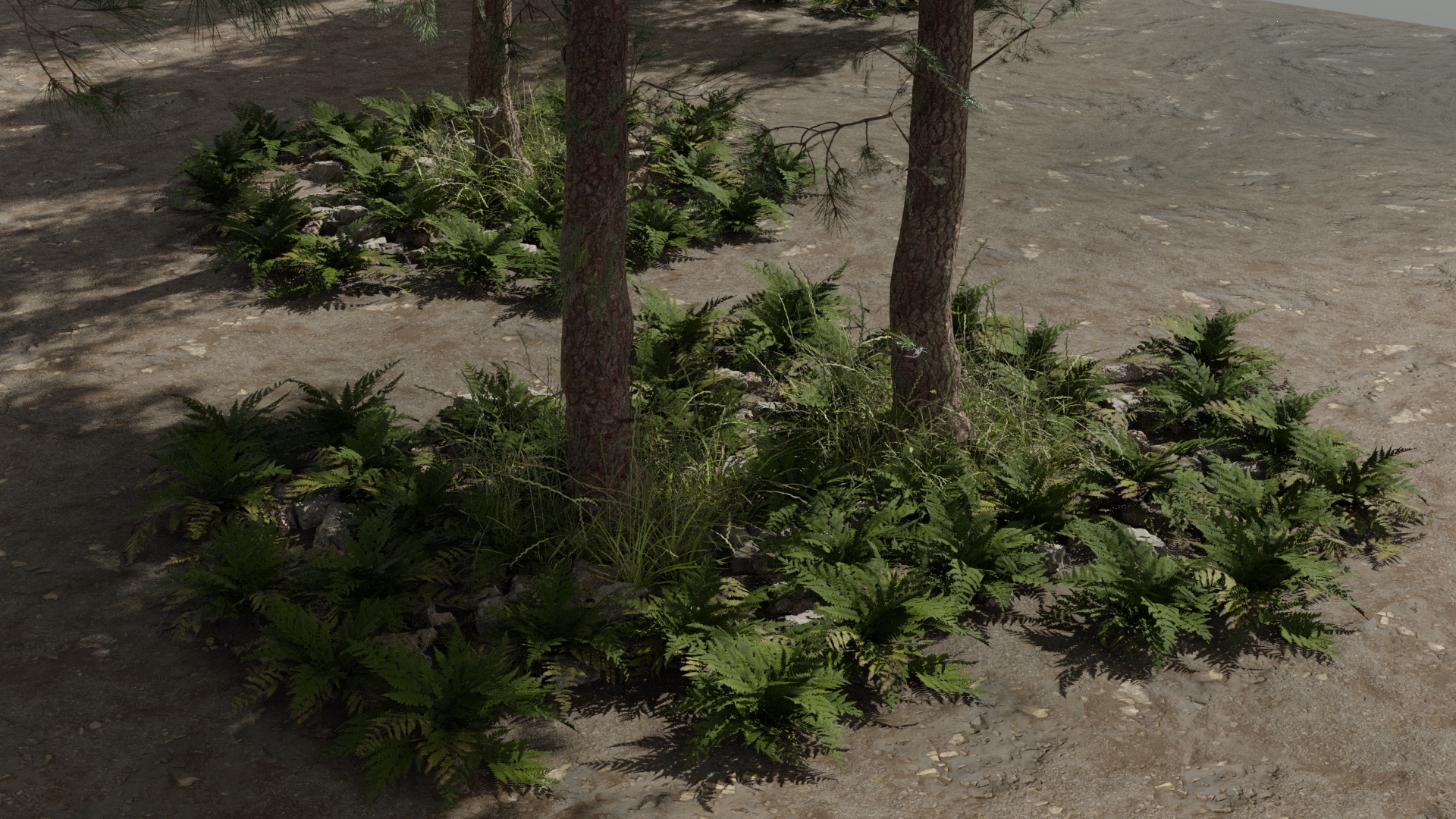
Limit assets to a radius around selected item(s).
Source
- Object: Limit the assets to be around a specific object
- Collection: Limit the assets to be around objects in a collection
- Layers: Limit the asset to be around the locations of assets that are in a scatter layer
Object
Object to scatter around
Collection
The collection of objects to scatter around
Layers
Choose the layers to scatter assets around.
Only layers that came before this layer are able to be scattered around.
Use Location Only
Use the location of the object or objects in the collection. This is the default and considerably faster method. Disabling this will using the distance from each vertex of each object. Useful if you want the assets to scatter around the objects in the shape of each objects instead of circle/randomized circle.
Radius
How far away for the source to scatter assets
Falloff
Distance relative to Radius to fade scattered assets out.
Slope

Slope Factor
The extent of incline that is incorporated into the mask. A value of 0 signifies that no slope is included, encompassing areas that are flat and parallel to the ground. On the other hand, a value of 1 implies that slopes up to and including 90-degree cliffs are considered and included in the mask.
Texture
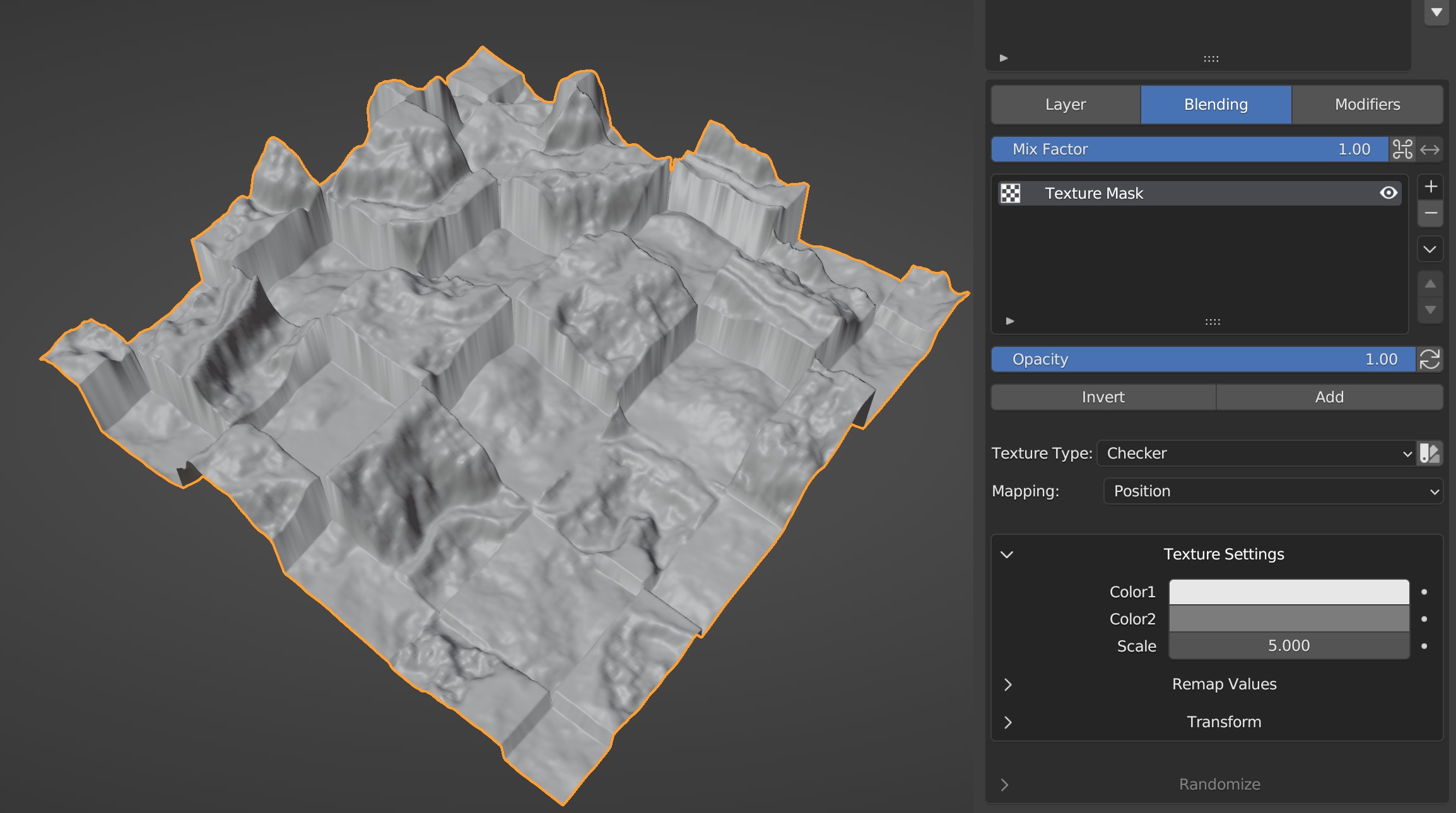
Use a texture to blend between the current layer and previous layers.
Texture Type
The type of texture to use
Pick From RGB
Many texture types output a color. With this enabled you can choose what channel of the color to use as the blend mask. Otherwise the single value output is used or the color is averaged if there isn't a single value output available.
R/G/B
The RGB channel to use for blending of the active texture
Mapping
Use either the position of the vertices or the object's UV Map to place the texture.
UV Type
Whether to use the regular UV Maps or Attributes from geometry nodes.
Texture Settings
The setting of the active texture. See Blender Docs for more information.
Remap Values
To alter the range of values for this mask, you can employ various methods:
Map Range
Utilize From Min/Max and To Min/Max values to modify the range of the mask's values. This method allows you to remap the existing range to a new range.
Easing
Employ predefined curves or create a custom curve to adjust the range of values. Easing functions enable you to control the smoothness or sharpness of the transition between values. See the Easing documentation for more information on how to use easing curves.
Ramp
Use a ramp to manipulate the range of values. By configuring the ramp's control points, you can reshape the mask's values to suit your requirements.
Transform
Reposition, resize, or rotate the active texture.
Valley
The valley mask feature grants users the ability to focus on either valleys, which are concave areas, or ridges, which are convex areas. With this functionality, users can selectively identify and manipulate these specific topographical characteristics within the terrain.
Threshold
Adjust the level of inclusiveness to target areas that are progressively less concave or convex.
Use Ridges
Target areas that are convex or ridges
Falloff
The distance from the fully selected areas under the threshold to where the mask selection gradually fades out.