Settings
Layer Settings

Example Image of the Shader Layers
Settings From Left to Right
Select
Select layer(s) in order to do things to multiple layers at once
Layer Icon/Interaction
Shows the active asset or that is a Group layer. Clicking the icon will do the following depending up on the layer type:
- Texture/Procedural Layer: Change the active asset even switching between texture and procedural shader.
- Group Layer: Enter into the group in order to edit the child layers
Layer Name
The editable name of the layer. Double-Click on the name to edit.
Layer Asset Name
The active asset on that layer as the icon isn't always obvious.
Preview Layer
Clicking this button will limit displaying only the layers up to this point. Alt + Left Button in order to solo just this layer.
Layer Visibility 
Hide this layer.
Texture Settings
Quality Level
Easily change the resolution of the active texture
Use Proxy
Use a different resolution (quality level) in the viewport than when rendering
Render Quality Level
The resolution (quality level) to use when rendering
Mixing
How this layer will be applied to the layers below
Opacity
Vary the transparency of this layer
Scale
The size of texture. By default the textures are meant to be 1mx1m but that's not always what the artist wants!
Displacement
The displacement height of this layer
Settings
Specular
Amount to apply of specular map
Roughness
Amount to apply the roughness map
Normal
Strength of the normal mapping effect
Wetness
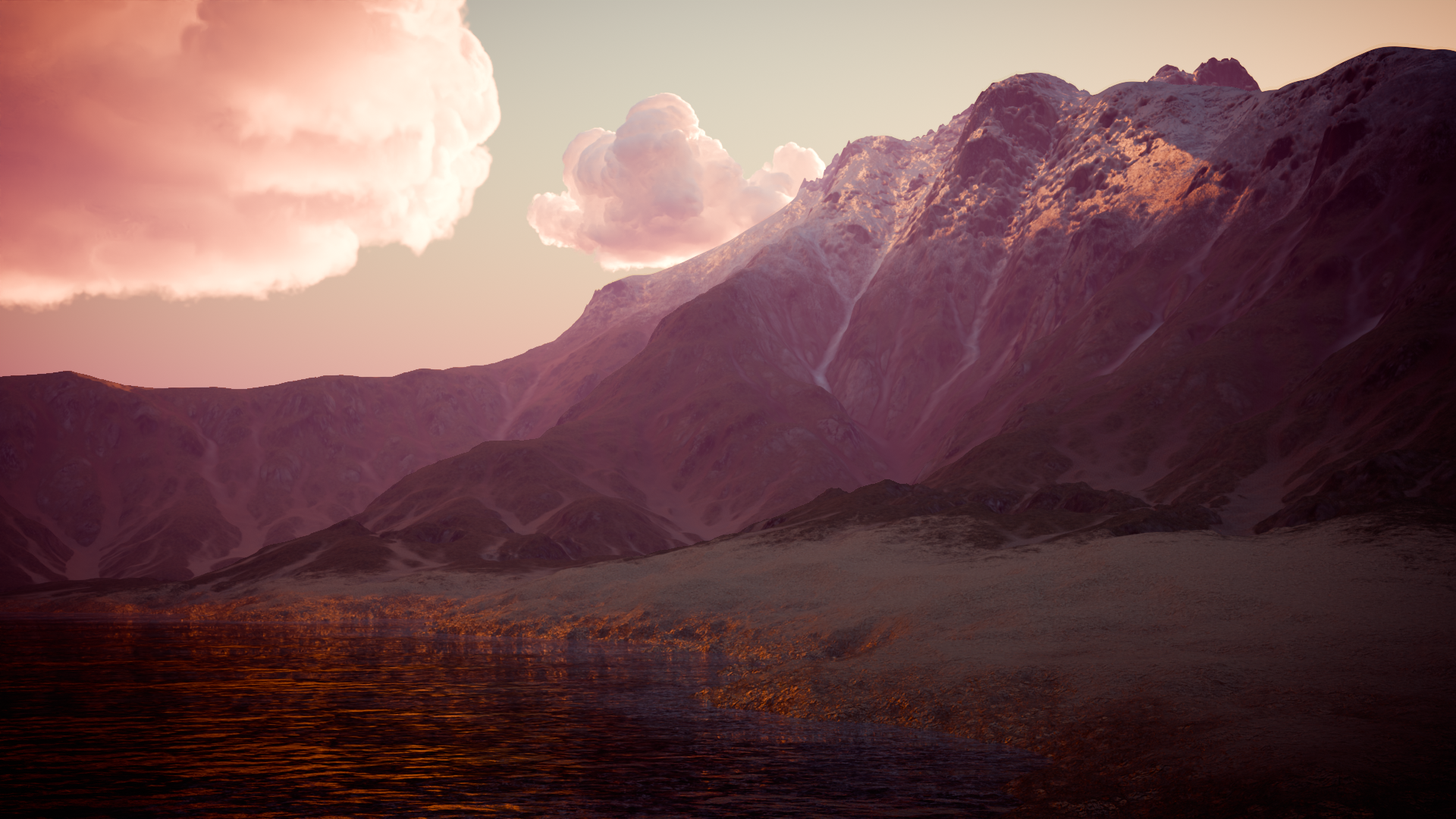
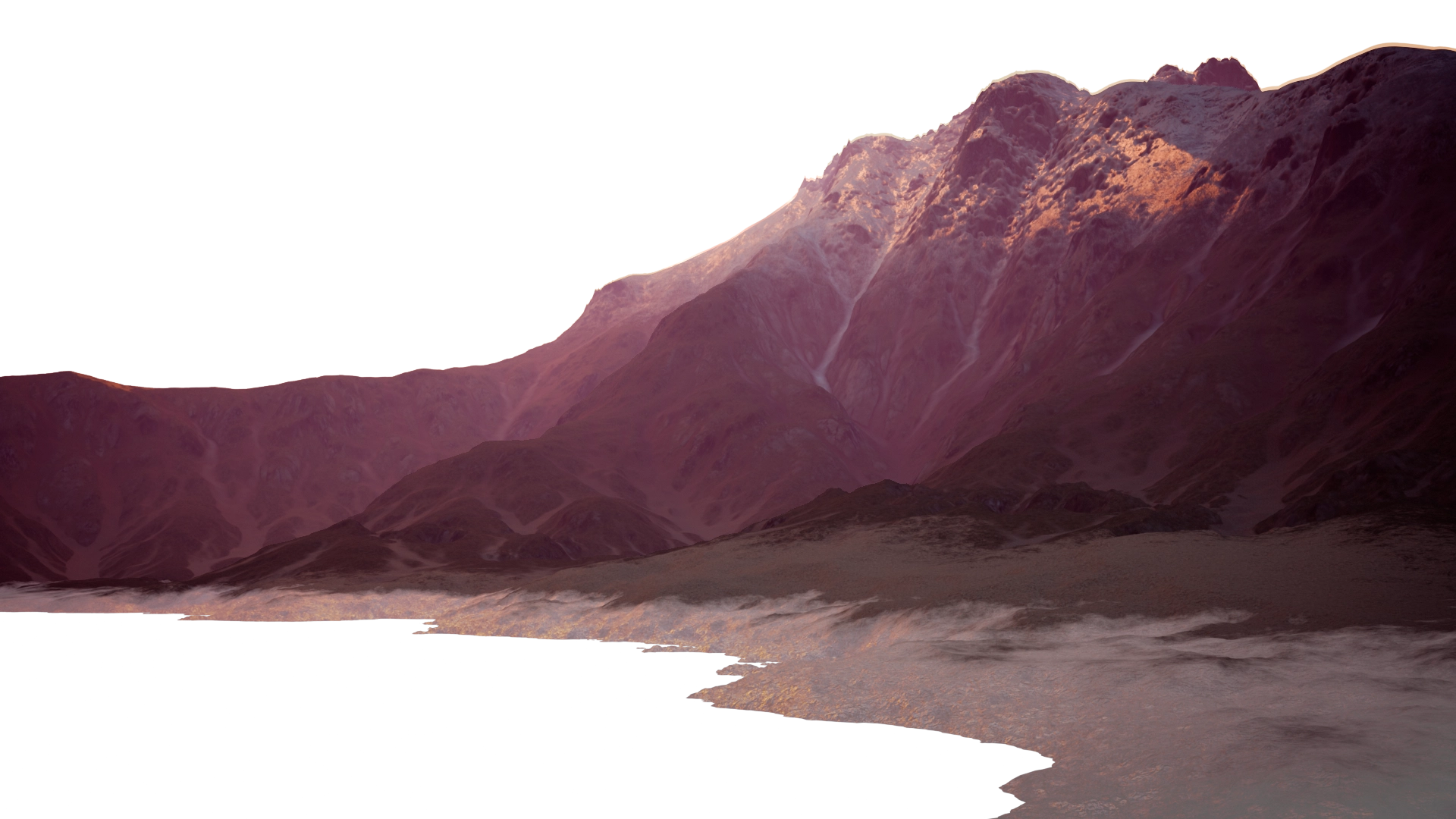
Wetness used to make the shore shiny and darker
Water Amount
How wet the ground should be.
Water Absorption
Vary the darkeness of the wet areas.
Masking - Auto
Automatically shade the wet areas underneath Water geometry.
Distance
How far away to extend wetness above the water line.
Distortion
Distort the edge of the wetness.
Distortion Amount
Vary the amount of distortion.
Masking - Height
See Height Mask settings.

Transform
Location
Translate this layer
Rotation
Rotate this layer
Scale (per Axis)
Scale the individual axes




Anti-Tile

Showing no anti-tiling to full anti-tiling.

Use Anti-Tile
Remove the repetitious nature of putting 1000s of the same texture next to each other.
Use Voronoi
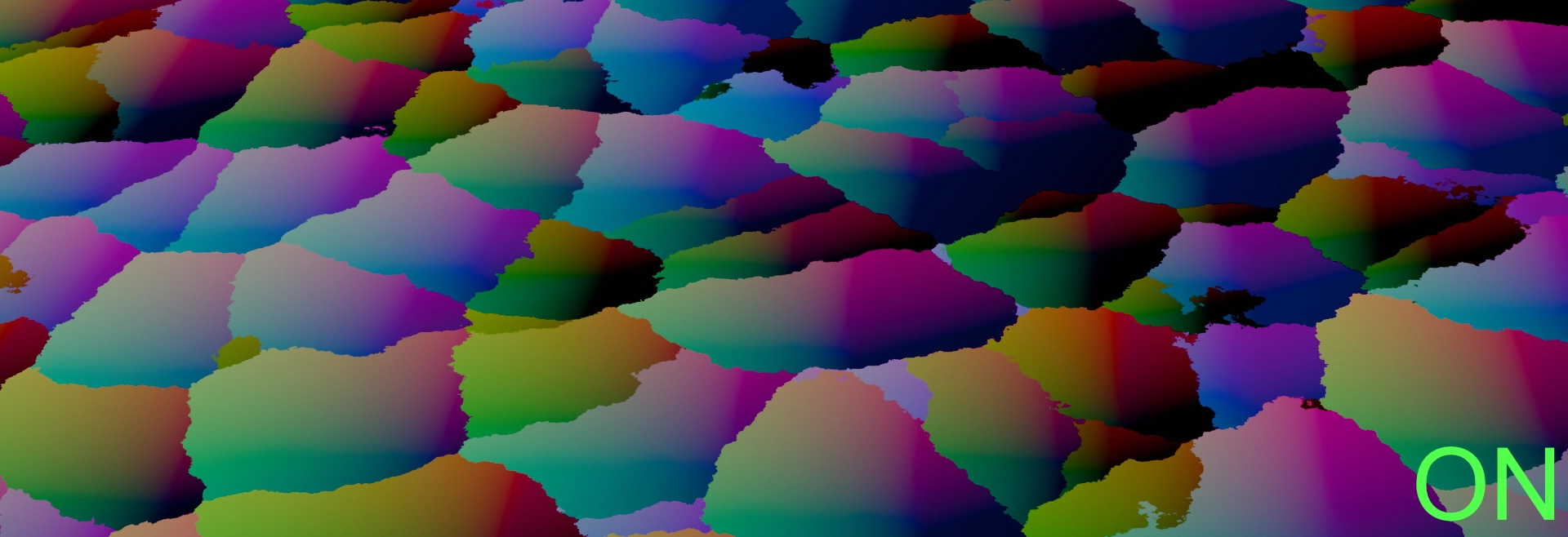
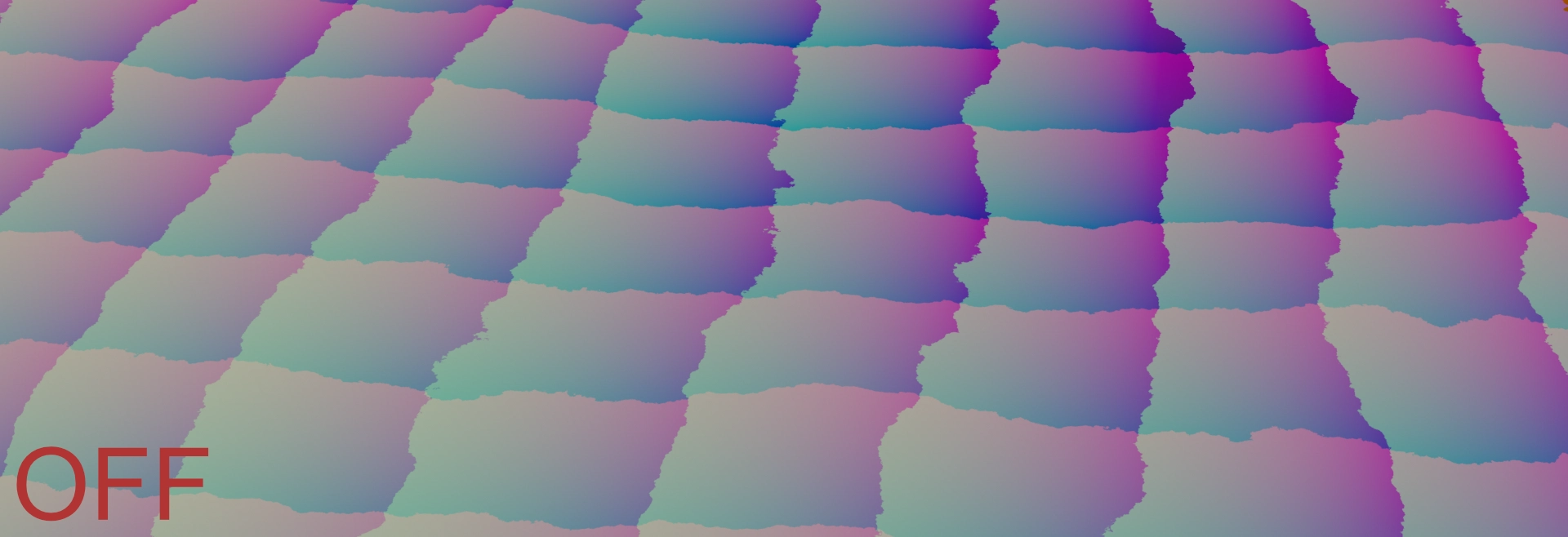
Use a voronoi like texture for the anti-tiling
Edge Blur Amount
Blur the cell edges
Edge Blur Noise

The size of the noise that disturbs the edge of the cells.
Edge Blur Detail


Seed
Randomize the anti-tile cells
Cell Size


Vary the size of the cells
Location Randomize

Minimum
The lowest value for each axes to offset
Maximum
The highest value for each axes to offset
Rotation Randomize
Minimum
The least to randomly rotate
Maximum
The most to randomly rotate
Scale Randomize
Minimum
The smallest to randomly scale
Maximum
The largest to randomly scale