Layers
What are Layers?
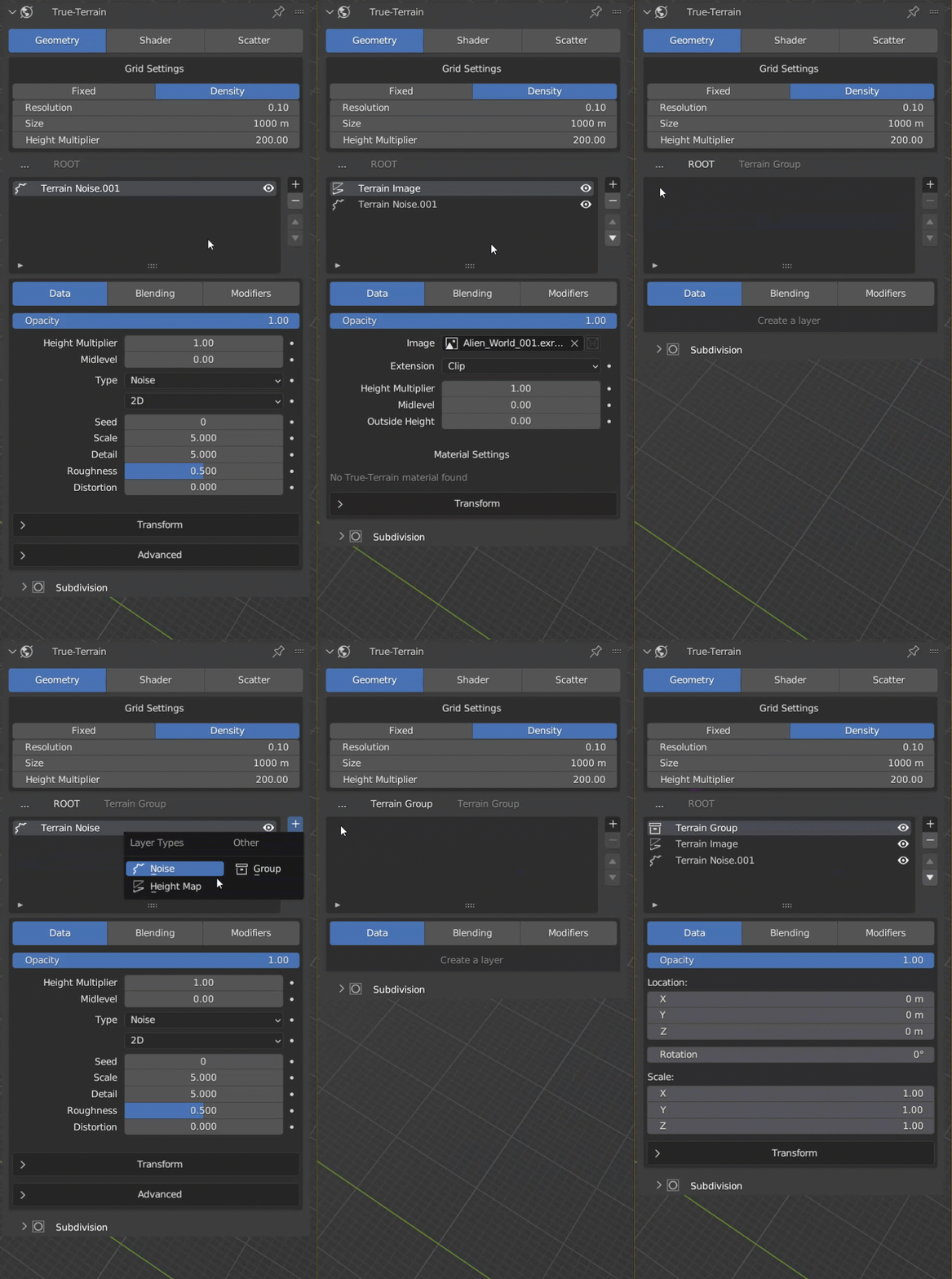
Layers are the building blocks of TrueTERRAIN
When working with 3D software, layers are an essential tool that allows you to organize and control the elements of your scene. Essentially, layers are like transparent sheets that can be stacked on top of each other, with each layer containing specific objects or elements. By separating different objects/sets of data onto different layers, you can easily manipulate and adjust them without affecting other parts of your scene. This comes in handy when you need to make changes to a specific part of your project but want to leave the rest of it untouched. Overall, layers are a critical feature in any 3D software and can greatly improve your workflow and productivity.
TrueTERRAIN has been created to operate efficiently using a widely recognized methodology that is commonly used in image manipulation, 3D painting, and 3D sculpting tools. We have incorporated this approach into the four sections of TrueTERRAIN. In the Terrain section, for example, using layers you can effortlessly stack various layer types - such as Noise, Heightmaps, and Groups - on top of each other and blend them together using blending methods or modifier functions.
The layers system allows us as developers to add to it easily without having to re-write everything like in previous versions, and it allows the user to easily see what they're doing, and how they're doing it. This is the first time this has been implemented in this way for any Blender addon up to now, and has made it intuitive enough that even the newest of users should be able to understand how it works.
How the Layer List Works
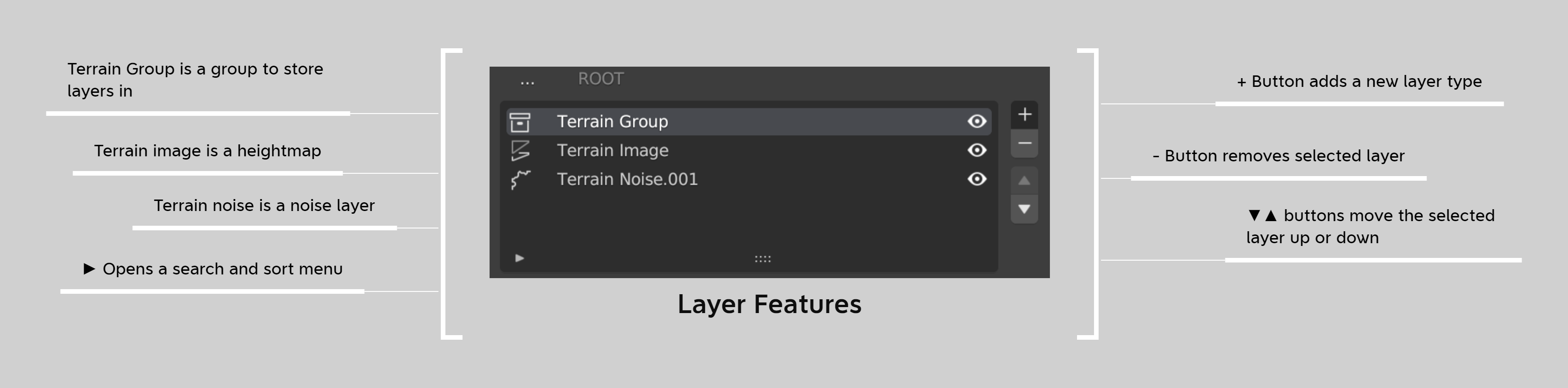
Layer Functions
Add Layers 
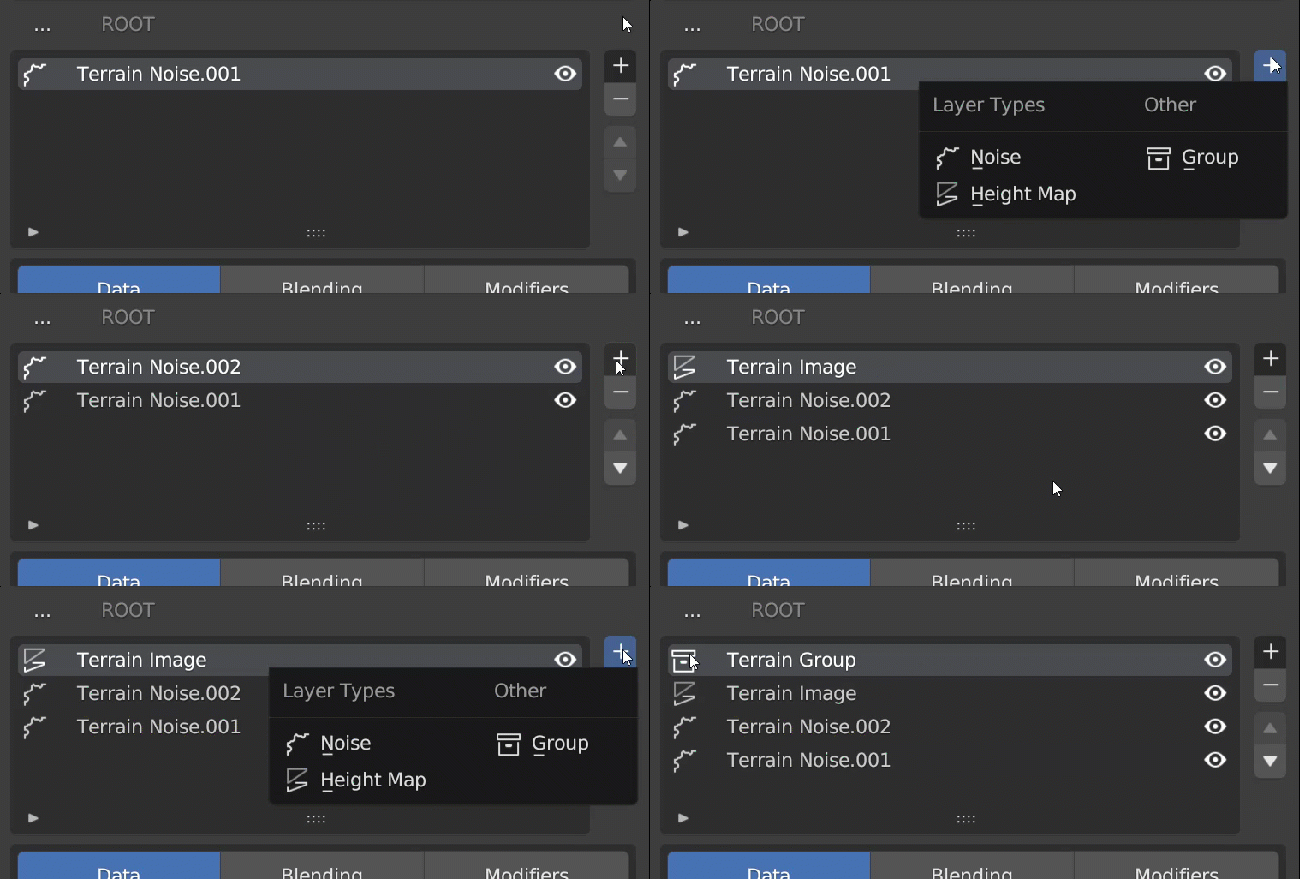
Adding layers can be done using the button on the right side of the layer window.
There are no set limits on the amount of layers you can add in the paid version of TrueTERRAIN 5.
Remove Layers 
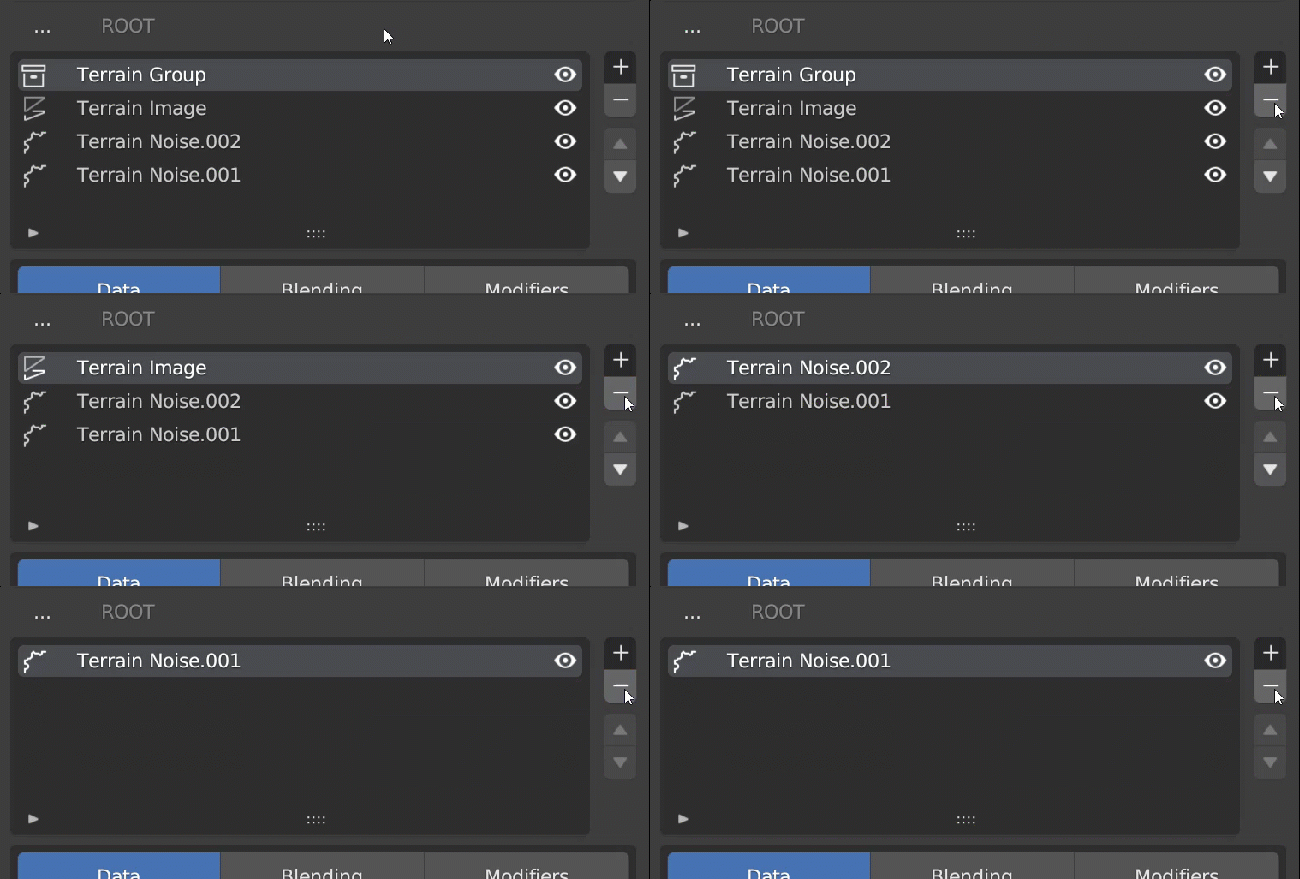
Removing layers can be done by selecting a layer, then using the button to remove that layer. The next layer in the list will be selected after the selected layer is removed. This allows you to continue removing layers without needing to select them, if you wish to remove all layers below the one you originally removed.
Removing all layers will present you with a flat grid in the viewport.
Move Layers 
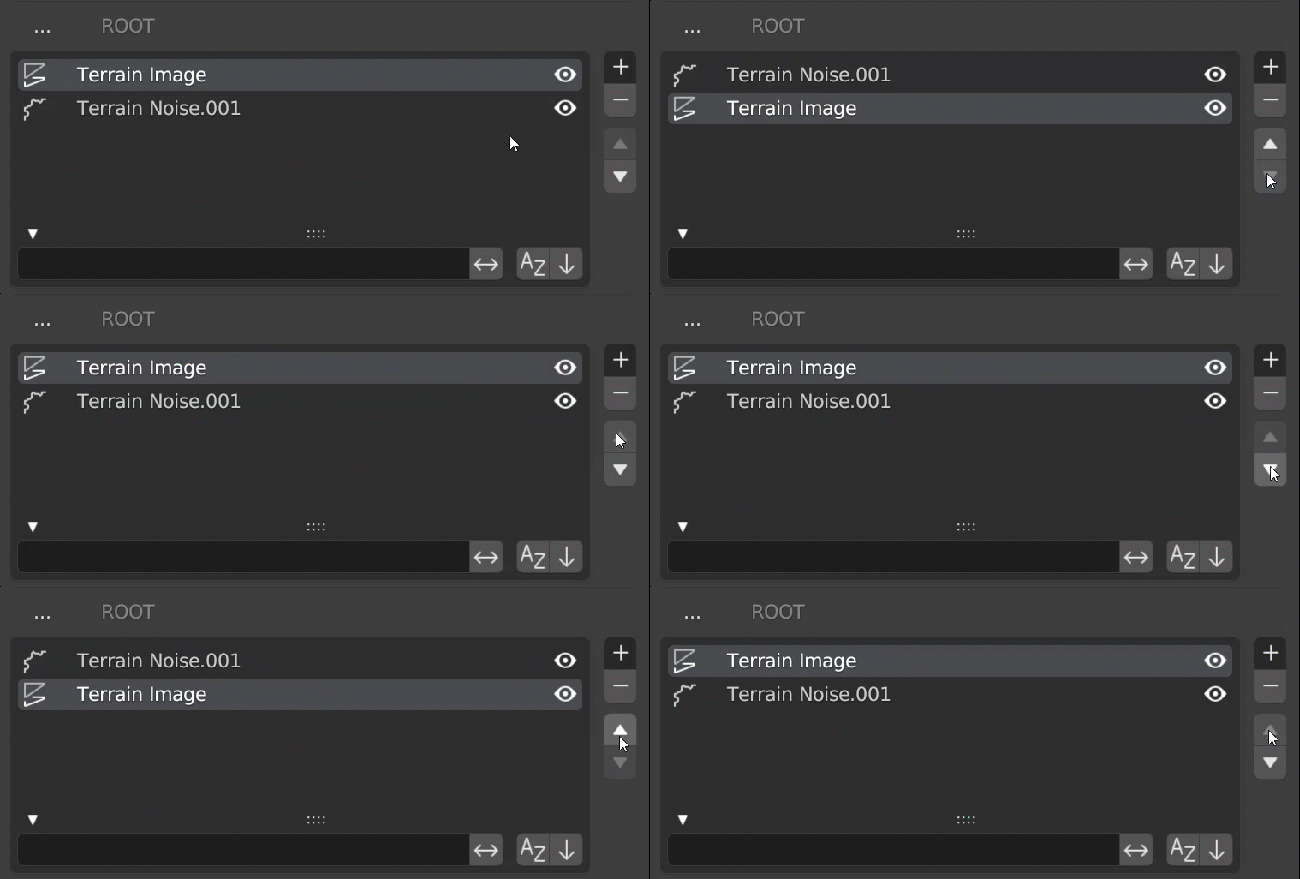
You can re-order layers using the buttons. This method of re-ordering changes the order or operations of those layers, and is NOT just a visual re-order. Bear in mind that if you have layer modifiers and blending values set, this will change the look of the mesh when changing those layers orders.
Navigating Groups
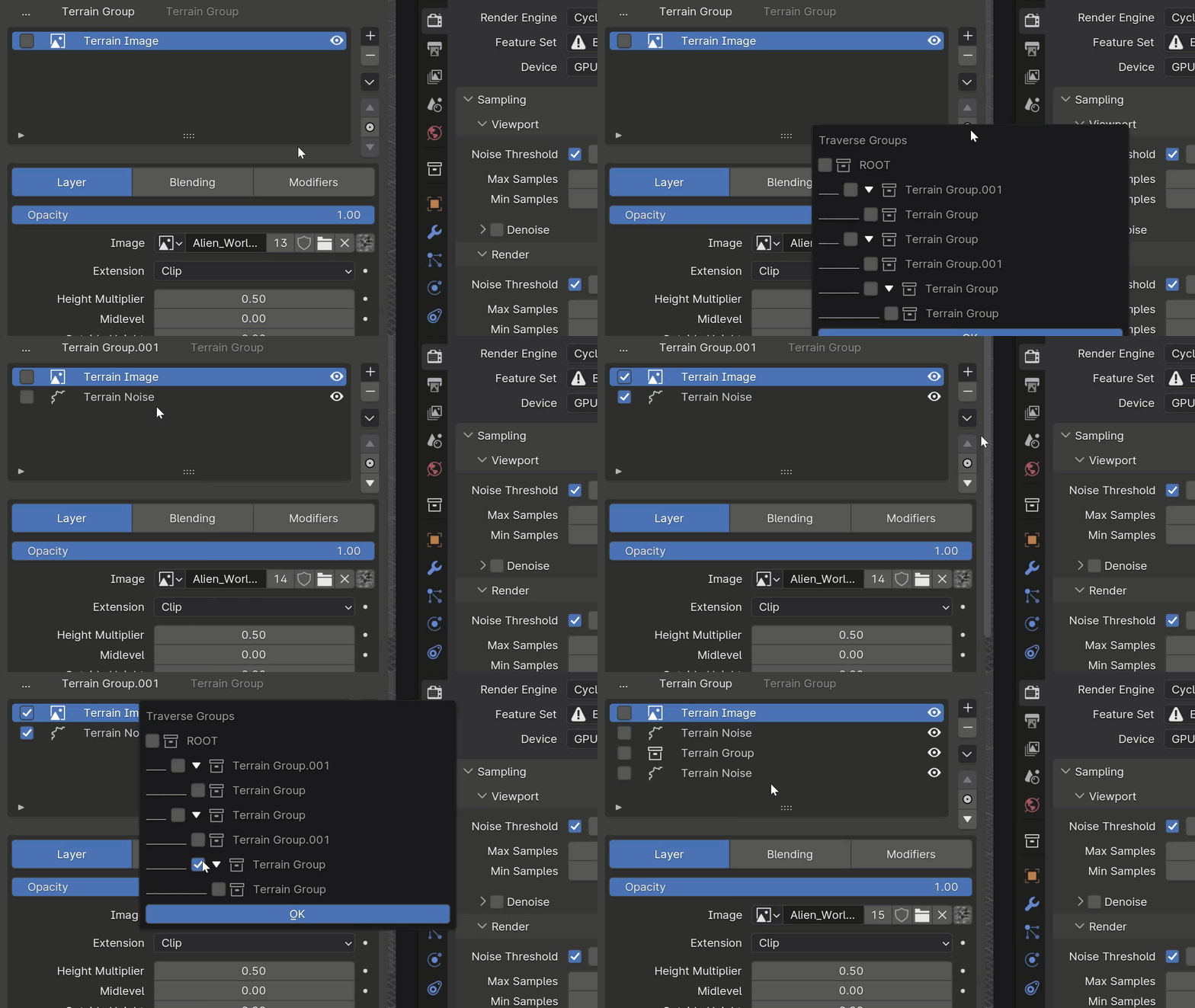
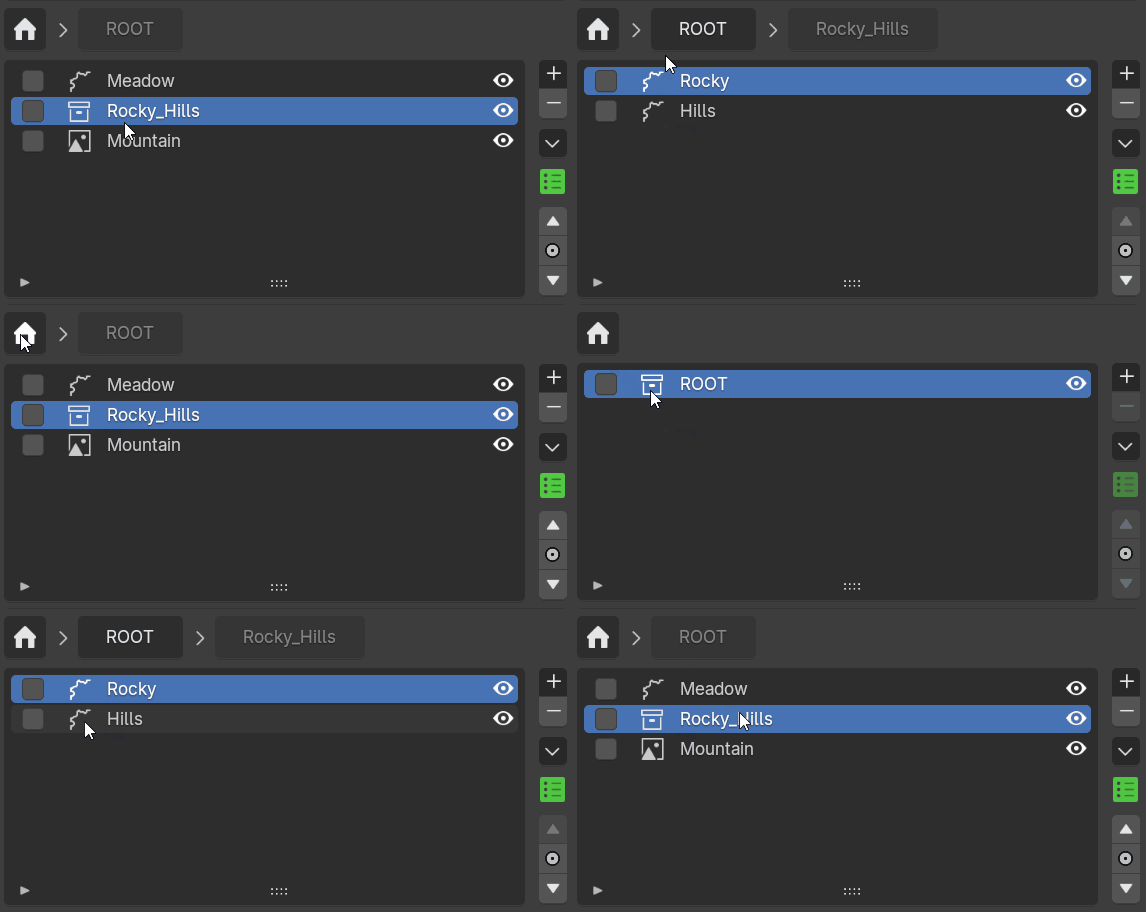
Moving in and out of groups is simple; to go into a group, simply click the group/folder icon and you will enter. To go out of this group, click the text in white shown above the layer window. This will be named "ROOT" if you're only one group deep, or will be the name of the group above it. (Make sure to use proper naming conventions so you can tell where you are when navigating the layers).
Navigating Groups Example
Renaming Layers
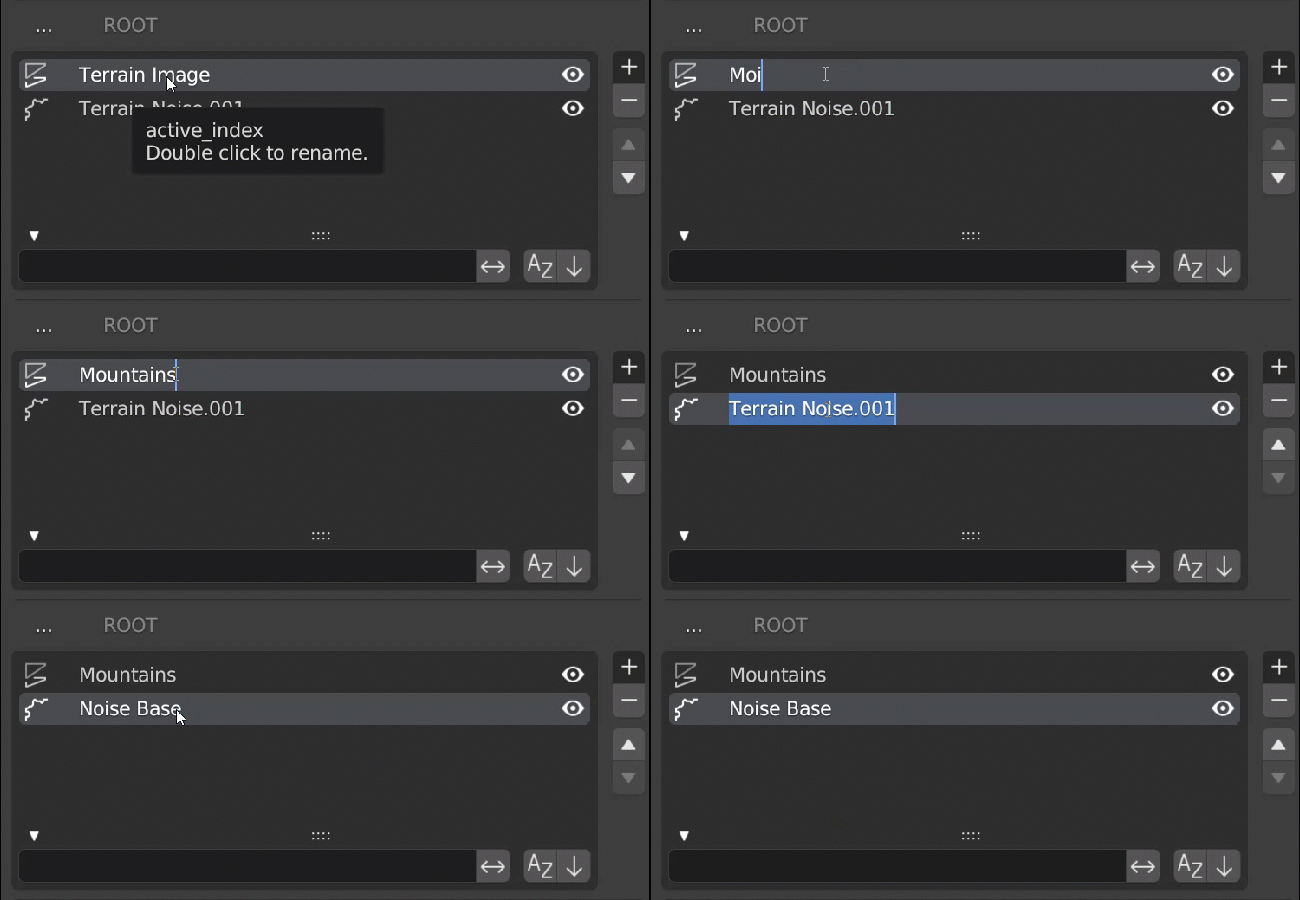
Renaming layers is done with the Blender default "double-click" on the layer name. Once you double-click a layer name, the text will highlight in blue and you can now rename the layer. Pressing right-click or Esc will revert these changes. Pressing Enter will complete the renaming.
Selecting Layers
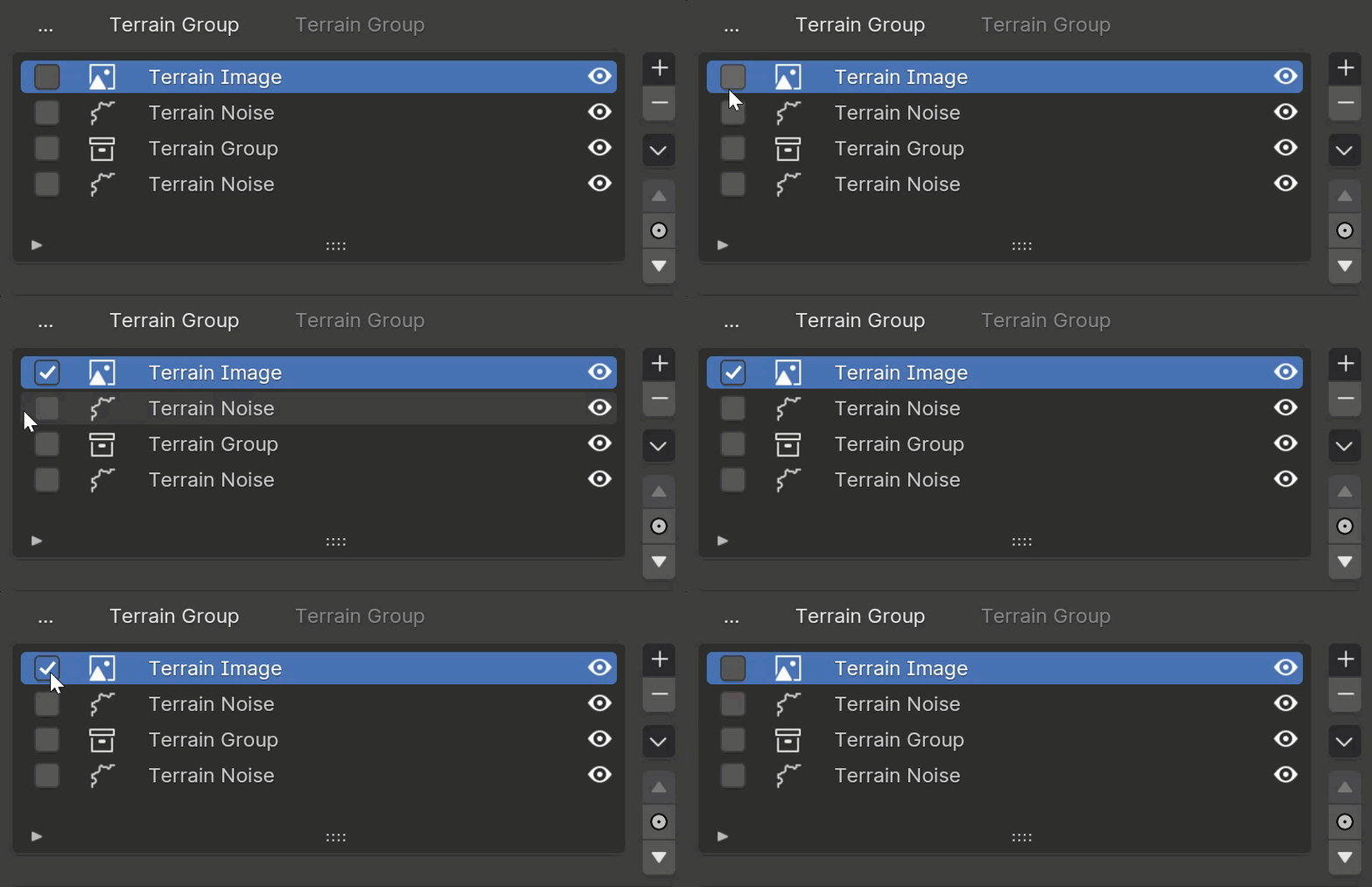
Selecting layers allows you to move, remove, and other things multiple layers at the same time. To select a layer click the check box at the far left of the layer in the Layer List
Layer Management Menu
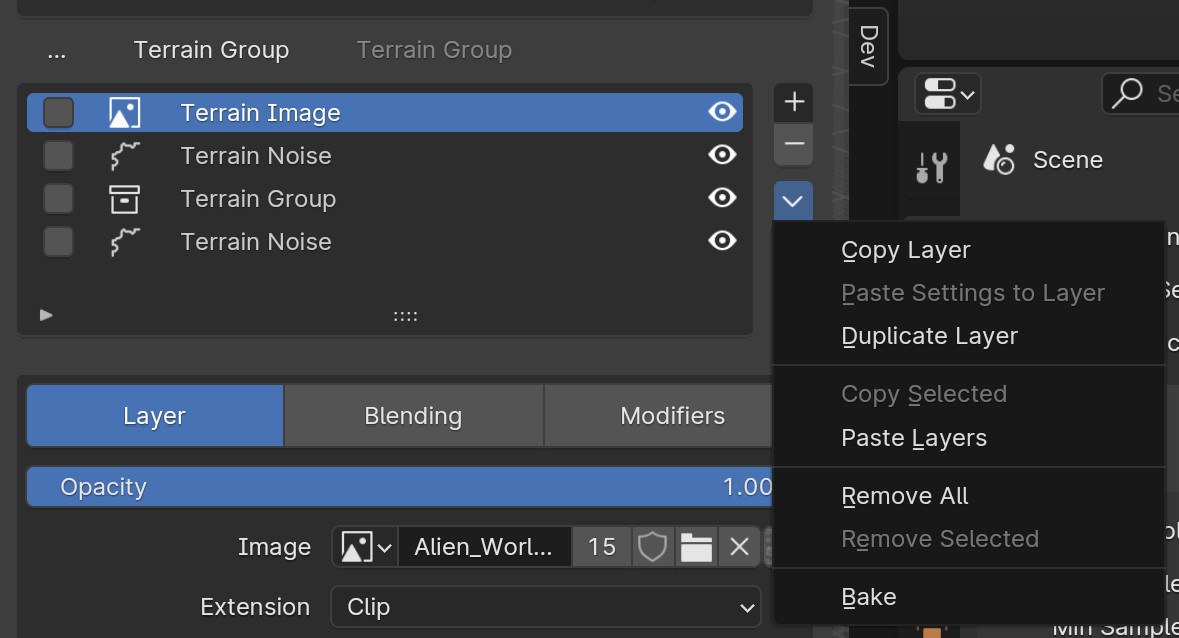
Copy Layer
Copy the active layer
Paste Settings to Layer
Paste only the settings of the copied layer to the active layer. Disabled if the copied data is not a single instance of the same type as the active layer
Duplicate Layer
Creates a duplicate of the active layer with all its settings.
Copy Selected
Copies all selected layers. Disabled if no layers are selected.
Paste Layers/Paste as New
Pastes the copied layer(s) as a new layer. The name of the setting changes depending upon if a single layer or multiple layers have been copied.
Remove All
Deletes all layers in the list
Remove Selected
Deletes all selected layers in the list
Bake
Create a height map of the currently visible terrain heights. Will remap values to be between 0.0 and 1.0.
Sorting
Search and Sort
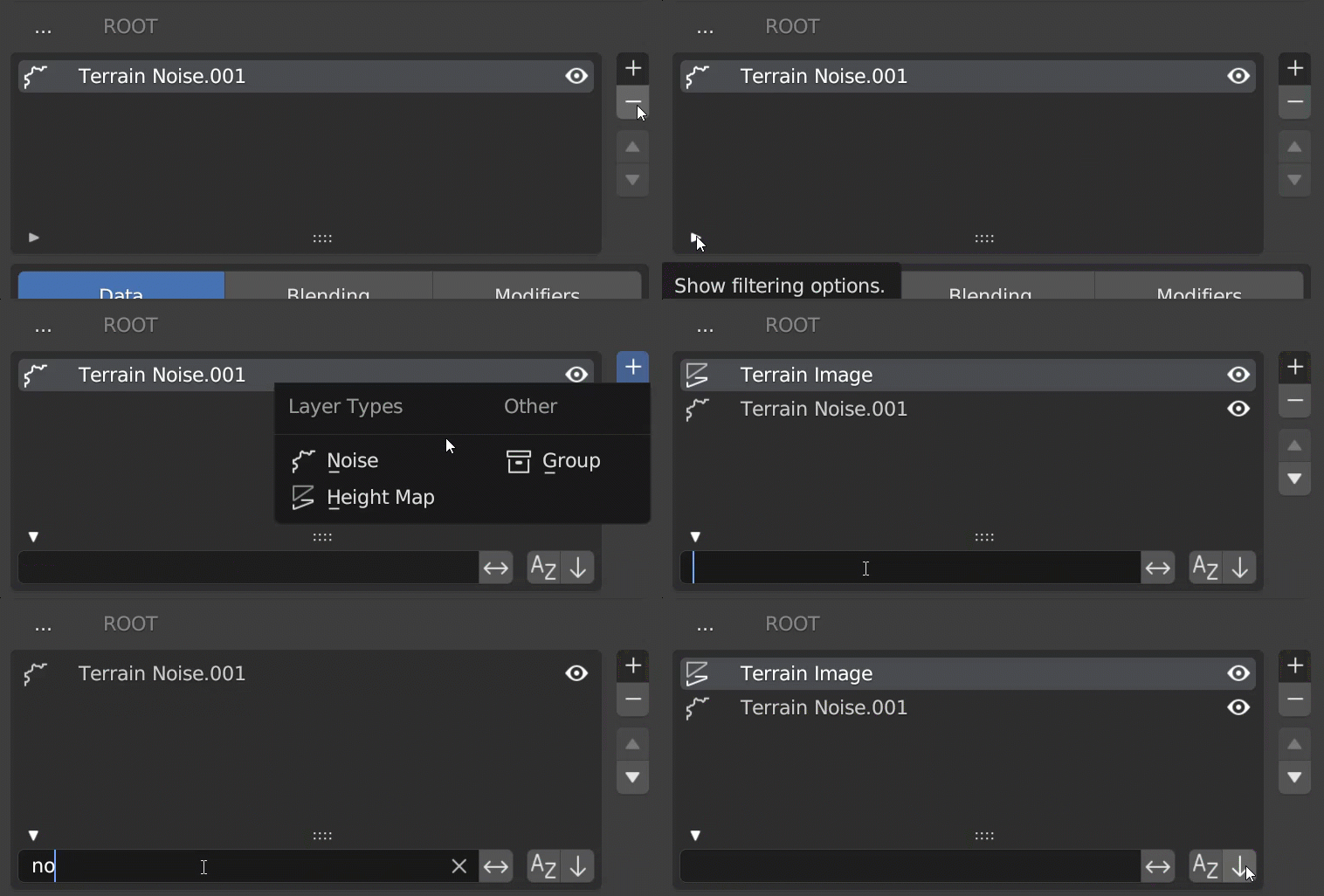
Showing visual sort options can be done by clicking the button on the bottom left of the layer window. From here you can search and sort the layers without changing the order of operations. This is useful if you have many layers, and grouped layers and wish to find a specific layer.
You can close this menu by clicking where the button was, which when open will show as a button. Clicking this will close the search and sort menu.
Visual Sorting
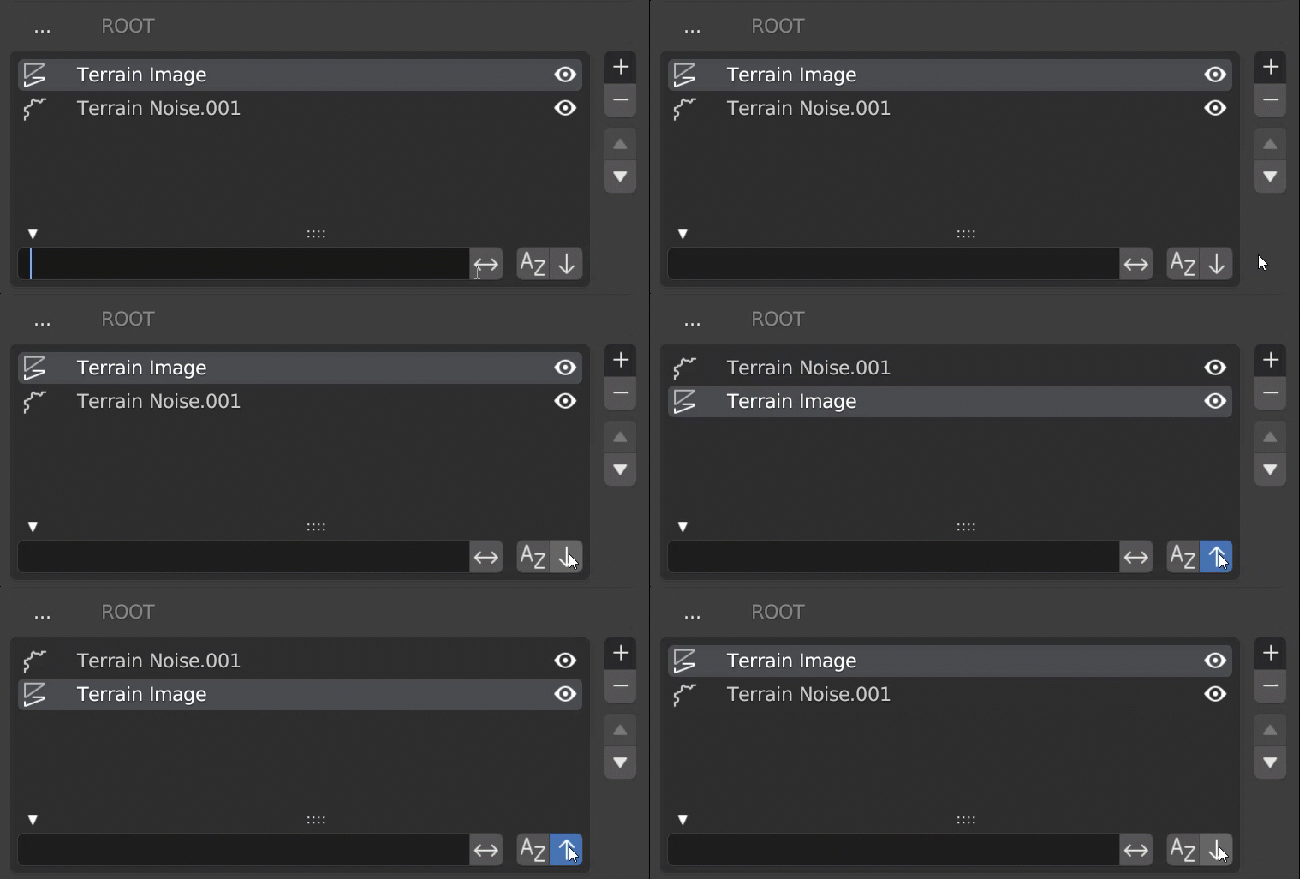
Visual sorting can be done by using the button found in the bottom right after opening the search and sort menu. It will toggle blue and grey when clicking. Blue meaning it is now in active sort with the arrow pointing up and when deactivated (set to default sort) the arrow will point down and the box will be grey.
Group Traversal
You may easily move layers between groups being clicking the Group Traversal button between the Move Up and Move Down buttons. Select a single group in the pop up panel that appears and click the OK button to move. If no layers are selected the highlighted (active) layer will be what is moved, otherwise, the selected layers will be moved.