First Time Use
The Side Panel
Basic
The N panel is where you will find all the (current) main functions of TrueTERRAIN 5.x. Across the top of the panel we have tabs for Terrain, Water, Scatter, and Shader. These tabs will be your main working spaces and will control functions respective to the system you're using. For example Terrain will only control the manipulation of the object/mesh that has been created.
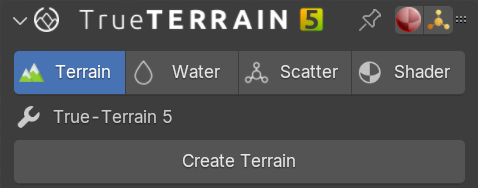
Terrain Tab
Terrain
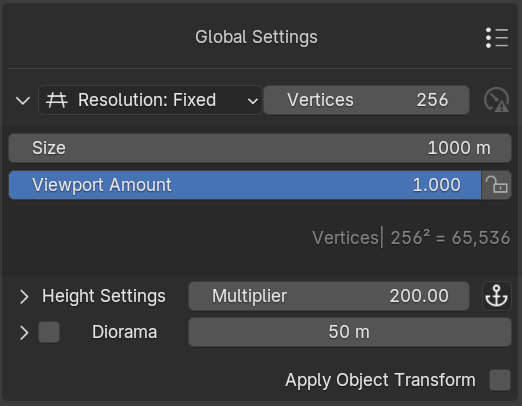
Terrain will be the first system you use. After clicking the [Create Terrain] button you will have at your desposal a 256x256 grid with 65,536 faces by default, which is ideal for real-time control and showing details. To adjust your grid, go to the Global Settings section. If you select Density, you can set the resolution instead of the vertex count, this is best used if you wish for the detail to stay the same when you increase the size of the mesh. If you choose Fixed, the vertex count stays the same no matter the mesh size, which could affect quality for larger meshes. The size of the default mesh is set to 1000m (1km). This is inline with other terrain generation tools like Gaeaâ„¢ and World Creatorâ„¢ and should provide more than enough real-estate for you to begin making creations. You can always adjust this value, and any adjustments you have made to the mesh will be relative. Height Multiplier should be used more as a "post" effect adjustment. This will scale the overall height of the entire mesh, layers and modifiers included. This can make your mesh look stretched or squashed if you have already added layers.
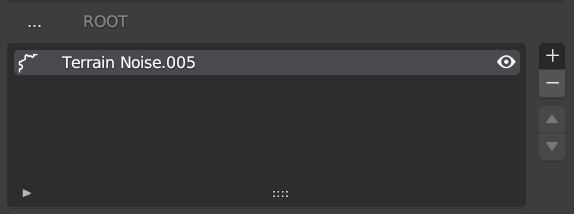
Layers
Layers are shown in the middle of this tab. Layers will be named based on their type:
- Terrain Noise: a noise type layer
- Terrain Image: a heightmap layer
- Terrain Group: a group layer, which can contain other layers
The will add a new layer type from your choosing.
The will remove the highlighted layer.
The will move layer types above, or below the layer respective layers around them.
See the Layers page for more information.
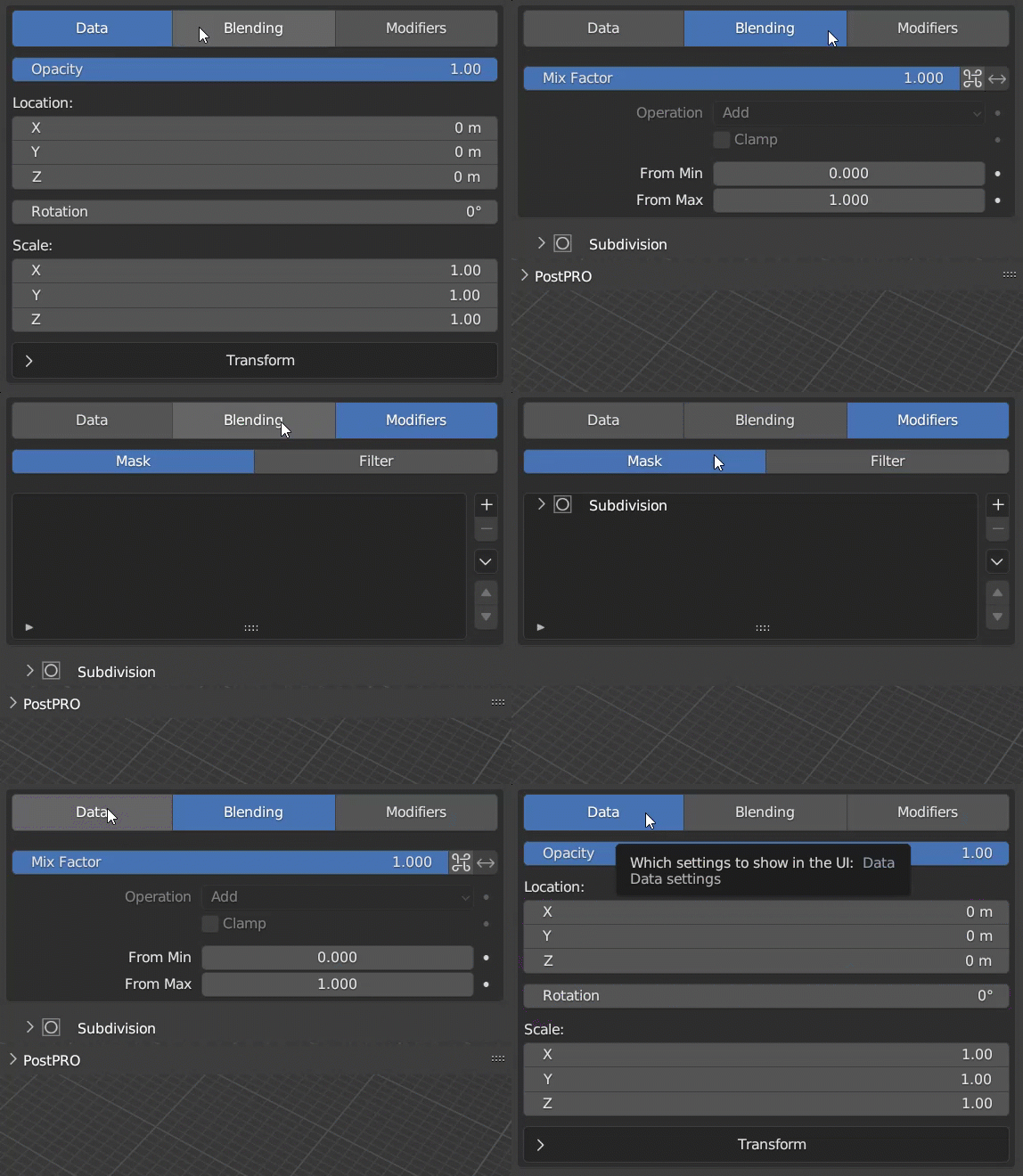
Manipulation
The lower section of the Geometry UI is where you can find the functions for manipulating the terrain. Layer houses the core functions of terrain manipulation. You will be able to change the location, rotation and scale of the layer here. If you are using noise, then this will have infinite details. If you are using a height map, you can move the heightmap off the mesh if you move it too far. You can also adjust the sub-noise details in this tab. Blending houses the functions of the layer. Here you can control how much the current layer shows through any previous layers, you can choose whether the layer will "clip" the previous layer, or swap to a math function to blend with the previous layer. Modifiers is where you can add layer modifiers which will adjust how the layer is displayed, and how it affects the current geometry.
We have a video (it's not short) going over all the new features
This is a "quick" walkthrough of the features so far. This is less of a follow-along video where we make something, and more of a case of showing you what we can in the quickest way possible. We will have more videos coming soon...