Modifiers
Blur
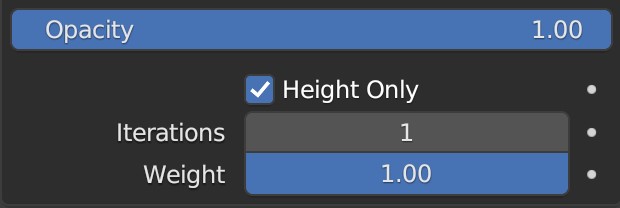
Geometry Blur Modifier UI
Opacity
Impact amount on the modifier's final output

Blur Opacity Example
Iterations
Number of repetitions of mixing value with neighbors.

Blur Iterations Example
Weight
Effectively the blur factor
Height Only
Only blur the Z axis

Blur Iterations with Height Only Disabled
Curve
If the height anchor for the terrain is set to anything other than None the terrain will most likely not meet up with the curve.
Curve Object
The curve object to use with this modifier
Add Curve
Create a new curve, set it as the active on on the modifier, enter edit mode for the curve, set Blender's Draw Curve tool to be the active tool in the viewport for quick adding of curves.
Note
The height of the curve while drawing is set by the 3D Cursor by default.
Info
Pressing Enter will exit the mode while pressing Esc or Right-Click will exit this mode and remove the curve(s).
Valley Width
Vary the width of the valley floor.
Cliff Slope
Vary the steepness of the valley's walls.
Orginal Details
Add back in the details from before the modifier was applied.
Valley Shape
Similar to falloff easing choose the shape of the valley's walls
See Easing Functions for more information.
Smoothing
Curve Resolution
Artificially vary the resolution to remove lines.
Smooth Extra
Smooth out the valley even more if lines are still there after maxing out Curve Resolution.
Randomize
This is a different type of randomize than the others since it's a long path.
Smooth
Blur noise result to remove sharp edges as a result of the noise.
Amount
The intensity of the noise.
Scale
How close together the randomness of the noise is
Detail
Vary the detail level
Distortion
Amount of distortion.
Seed
Randomize the noise.
Flatten Area
Choose an area to create a flat(ter) surface to put landmarks, houses, cities, or just to modifier the terrain to your use.
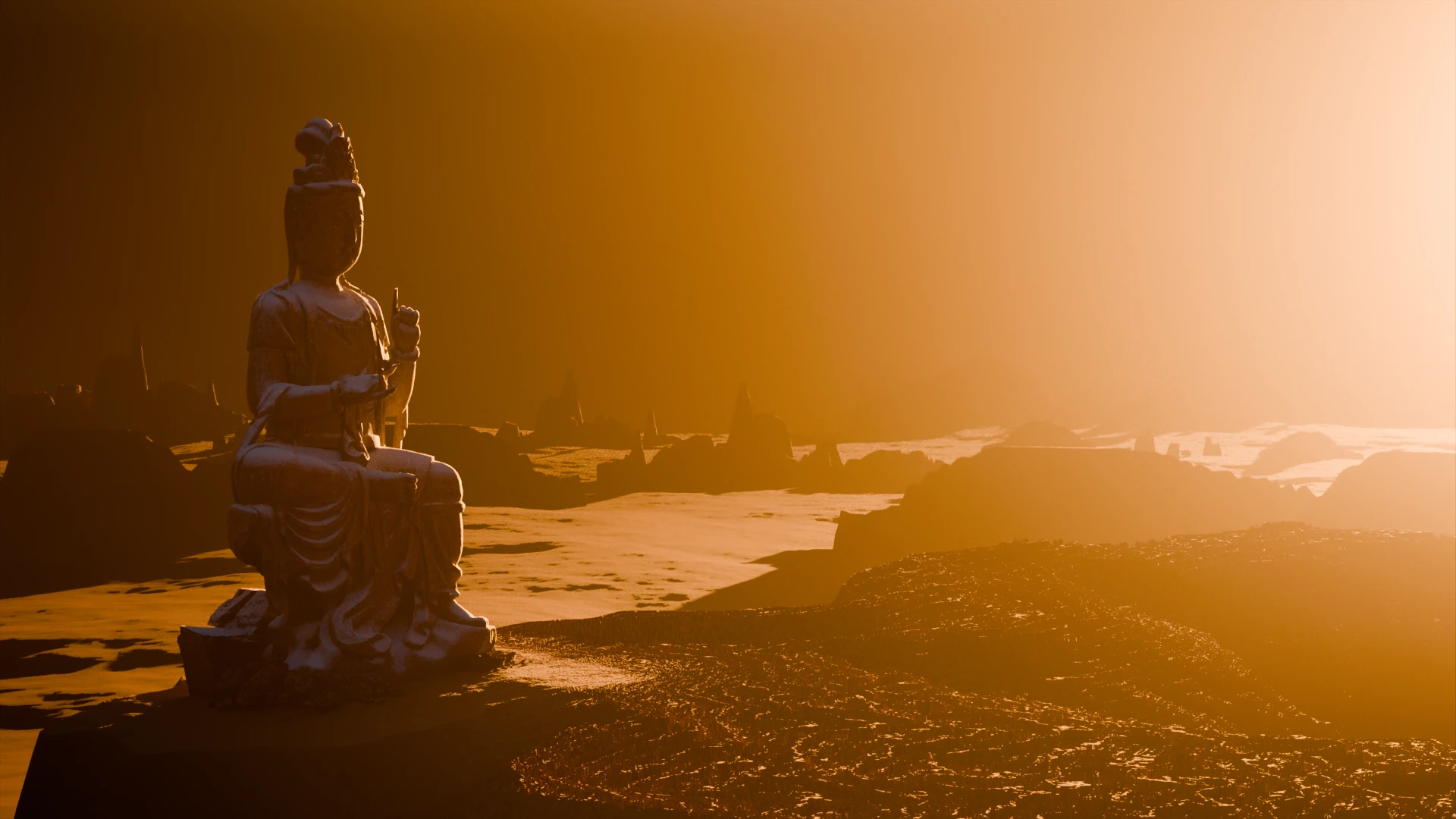
Here the Flatten Area modifier is used to extend the top surface out for the statue. Please someone create a better example image.
Location Type
- Location: Set the location manually where the terrain should be flat
- Object: Let an object's location decide where the terrian should be flattened
Note
Regardless of Location Type the Z axis will decide the height of the flattened area either what is set in the Location setting or the Z axis of the object
Radius
How far away from the location to flatten the terrain.
Invert
Flatten everything outside the radius instead.
Height Offset
Offset the flattened area's height from the Location Type.
Info
Only visible if Use Object Height is disabled
Use Object Height
Use an object to set the height value.
Offset Object
The object to use as the height of the flattened area.
Info
Only visible if Use Object Height is enabled
Falloff
Distance outside of the radius to fade out the flattening effect.
Easing
Choose a different method to falloff. See the Easing Functions for more information.
Randomize
Add noise to the Radius to have a more organic border to the flattened area.
See the Randomize Settings for more information.
Terracing
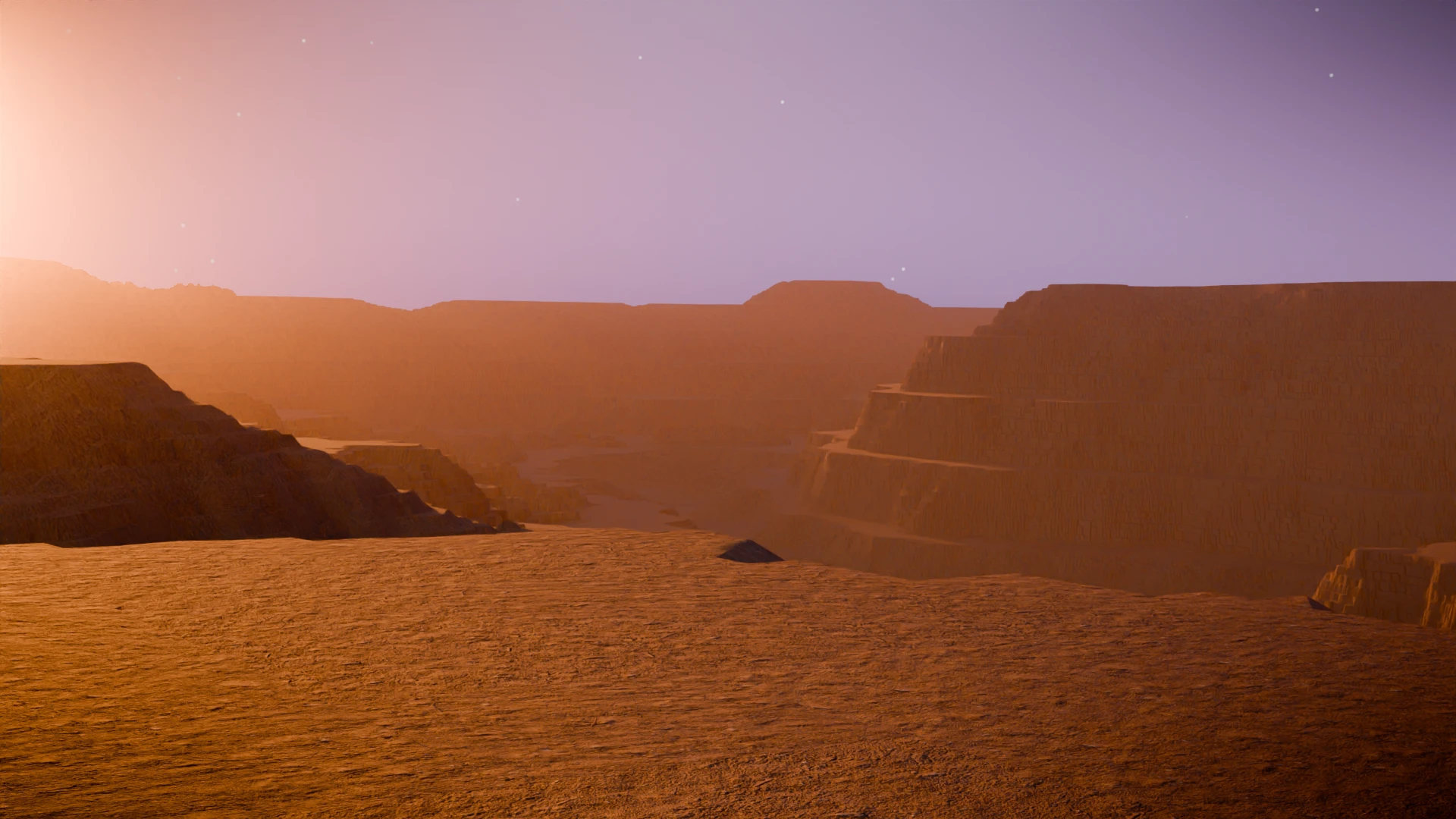
Terracing modifier example.
Send in a better example image of terracing to be featured here!
Cliff Heights
Distance between each terraced cliff.
Surface Width
Increase/decrease the flat surface area.
Inflate/Deflate
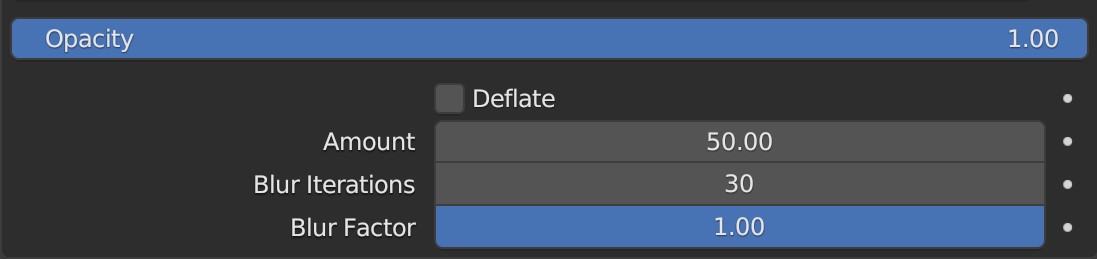
Geometry Inflate/Defalte Modifier UI
Opacity
The amount this modifier is applied
Amount
Home much to inflate/deflate the terrain

Inflate Amount Example
Deflate
Invert the effect. Helpful to sharpen the details of the terrain.

Deflate Amount Example
Blur Iterations
The amount of times to blur the inflate/deflate effect

Blur Iterations Example
Blur Factor
Reduce the blur amount