Modifiers are the way to take procedural layers and turn them into amazing terrains. On this page you'll discover how to use the general modifier interface and menu options available to you.
To be concise, 'modifier' here refers to both 'masks' and 'modifiers' in the addon.
Add Modifier 
Clicking the top right will show a menu where you can select the modifier you'd like to use.
Remove Modifier 
Remove the active modifier.
Move Item Up /Down 
Move the active item up or down. The respective button will not be able to be pressed if the active item is the first, last, or only item in the list
Modifier Management Menu
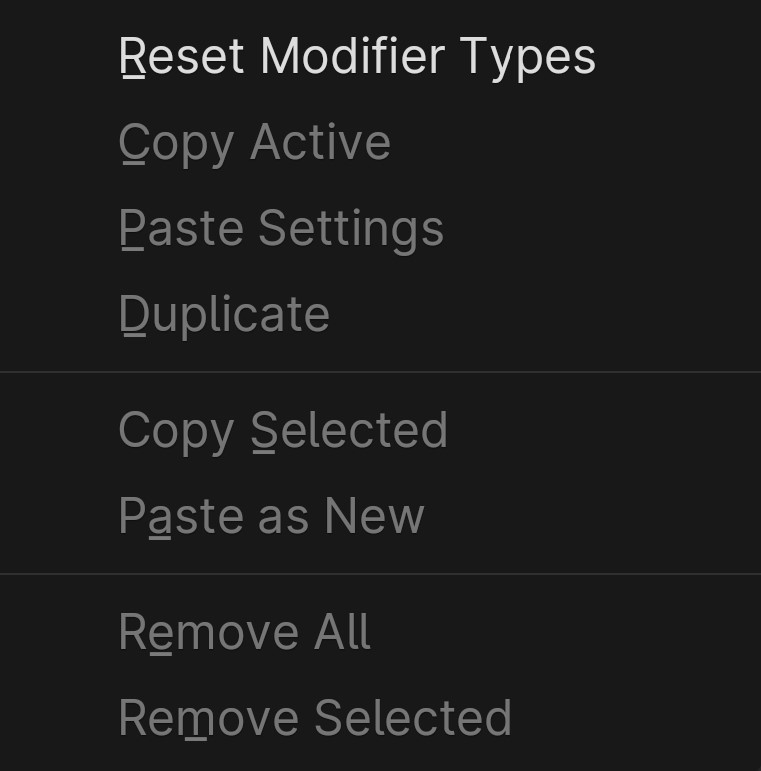
Reset Modifier Types
Occasionally, after updating TrueTERRAIN and accessing files created with earlier versions of TrueTERRAIN 5, modifiers might exhibit an identity crisis, incorrectly presenting themselves as modifiers they are not. In such cases, the function available in the dropdown menu, situated between the Move Up and Remove Modifier buttons, will rectify the situation. It will effectively administer the appropriate adjustments to all modifiers, restoring their correct attributes and restoring proper functionality.
Copy Active
Copy the active modifier.
Paste Settings
Paste the settings of the active modifier onto the active layer. Disabled if no modifier is active, more than one modifier was selected, or if the copied modifier type is different than the active modifier.
Duplicate
Duplicate the active modifier.
Copy Selected
Copy all modifiers that are selected. Disabled if no modifiers are selected. Hold Alt to keep selection
Paste Selected/Paste as new
Paste the copied layers as new layers. Label will say Paste as New if only a single layer was copied otherwise the label will show as Paste as New.
Remove All
Delete all modifiers.
Remove Selected
Delete all modifiers that are selected
Store All as Attribute
Enable to build and use masks across multiple layers and even sections!
See Store All as Attribute page for more information.