Erosion
How to Enable Erosion
Not compatible with Adaptive Subdivision grid type
Click the button in the panel header.
Nothing will immediately happen as you will need to advance frames for it to begin eroding.
The default settings are set in such a way as to give good results immediatley regardless of your terrain.
Settings
All settings can be animated!
Disable Erosion
Button to not calculate or show erosions results. Works whether the simulation is baked or not.
Located in the Header
Remove Erosion
Button that will fully remove erosion and its settings.
Located in the Header
Delta Time
The time passed between each frame. To set according to the scene's frame rate, invert the fps.
Example
Scene is at 24 fps. Set the Delta Time to (1/24). If you click and type this formula into the setting input area Blender will calculate the correct decimal value.
Skip Frames
The amount of frames to skip calculations in order to speed up simulation baking. When skipping, the simulation will use the last calculated values and move the water, sediment, and other settings according to those last calculated values.
In testing, a setting of 4 does not show obvious differences than when skipping 0 frames. Greater than 4 frames the result will begin to differ from when not skipping any frames.
Hydraulic Erosion
Enable

Calculate the erosion and deposition process due to the destablization of sediment due to water over time.
Initial Water Amount
The amount of water per vertex at the start of the simulation.
Rain Rate
The amount of water to add to each vertex each frame of the simulation. Turn to 0 and add some Initial Water to have the water land where it may to get lakes and rivers.
Evaporation Rate
The amount of water to remove from each vertex each frame of the simulation.
Sediment Capacity
The amount of sediment dissolved in the water that is allowed at a vertex based upon the amount of water. When this capacity has been reached some soil will be deposited.
Use Sediment Transversal
Transfer the sediment around the terrain. Significantly increases simulation speed and so is off by default. Leaving this off will also give nicer looking screes when using the attributes outputed from the simulation.
Initial Sediment Amount
The initial amount of sediment to start the simulation with. Would not reccommend using this value without also increase the Initial Water Amount.
Erosion Rate
The rate at which sediment is dissolved into the water. Sediment erosion at each vertex is also dependent upon the respective water amount and existing sediment amount.
Deposition Rate
The rate at which sediment is deposited back onto the terrain.
Gravity
The rate at which water is pulled downwards.
Pipe Area
Effectively the amount of water can be passed from one vertex to another each frame.
Water Mesh
Disable the water mesh while caching or baking and enable again after desired result is achieved. Water mesh will slow down viewport simulation speed and is applied after the simulation is calculated anyways.
Enable
Generate a mesh based on the simulation's water values at each vertex.
Threshold
The lowest water amount needed for a vertex to be included in the water mesh.
Subdivide
The amount of times to smoothly subdivide the water mesh.
Simulating with subdivision while water mesh is enabled, the simulation will be slowed down considerably.
Material
The material to assign to the water mesh.
Thermal Erosion
Enable

Calculate the erosion and deposition process due to the destablization of sediment over time.
Erosion Rate
How much sediment is displaced each frame. Increase to speed up simulation times when Hydraulic Erosion is not enabled.
Reduce Calculations
Only calculate 4 out of the 8 neighbors of each vertex.
Hardness
Not all sediment is compacted at the same amount. Some soil is more easily destablized than others. A texture is used to increase or decreases the soil's ability to be eroded. Each frame hardness values are reduced (softened) as soil becomes less compacted due to erosion. Hardness values are not dependant upon terrain resolution.
Texture Seed
Randomize the hardness value at each vertex.
Texture Blur Amount
Blur the hardness texture for more uniform hardness areas.
Softening Rate
The amount to soften the soil each frame.
Softening Minimum
The lowest amount a vertex's hardness value can reach.
Freeze
Blender's Simulation Baking Documentation
Freeze
Calculate and store on disk the simulation's cache. Will not use the existing cache. Uses the scene's frame range unless Use Custom Range is enabled.
You must have the terrain object selected and the current blend file must be saved.
Will bake all geometry node simulations that exist on the terrain object.
Delete
Remove the existing simulation cache, regardless if baked or not.
Advanced
Calculate to Frame
Similar to just hitting the play button and stopping it at specific frame, however, it will always begin at 0 and will automatically stop where the cursor was before simulation. Using this method allows you to see a man about a horse or other business dealing if needed and you won't have to worry about consuming a bunch of electricity.
You can not store non-baked files as baked files at this time. This is a Blender thing. Do not "at" us
Use Simulation Cache
Keep data around for each frame. If disabled and you change frames your cache will be gone even if returning to that frame again.
Use Custom Path
Specify where to store the baked cache files.
Custom Path
Path to store baked cache files.
Use Custom Range
Specify a different frame range than what the scene is set at.
Custom Start
What frame to begin simulating.
Custom End
What frame to end simulating.
Optimization Settings
Settings and ways that help speed up the simulation at the sake of inaccuracy. Many of these settings are included up top in their proper location too, but here collected for ease of access.
Skip Frames
The amount of frames to skip calculations in order to speed up simulation baking. When skipping, the simulation will use the last calculated values and move the water, sediment, and other settings according to those last calculated values.
In testing, a setting of 4 does not show obvious differences than when skipping 0 frames. Greater than 4 frames the result will begin to differ from when not skipping any frames.
Disable Hydraulic or Thermal Erosion
If you don't need one of the erosions your simulation will be faster disabling them.
Use Sediment Transversal (Hydraulic Erosion)
Transfer the sediment around the terrain. Significantly decreases simulation speed and so is off by default. Leaving this off will also give nicer looking screes when using the attributes outputed from the simulation.
Disable Water Mesh
Reduce Calculations (Thermal Erosion )
Only calculate 4 out of the 8 neighboring vertices.
Outputted Attributes
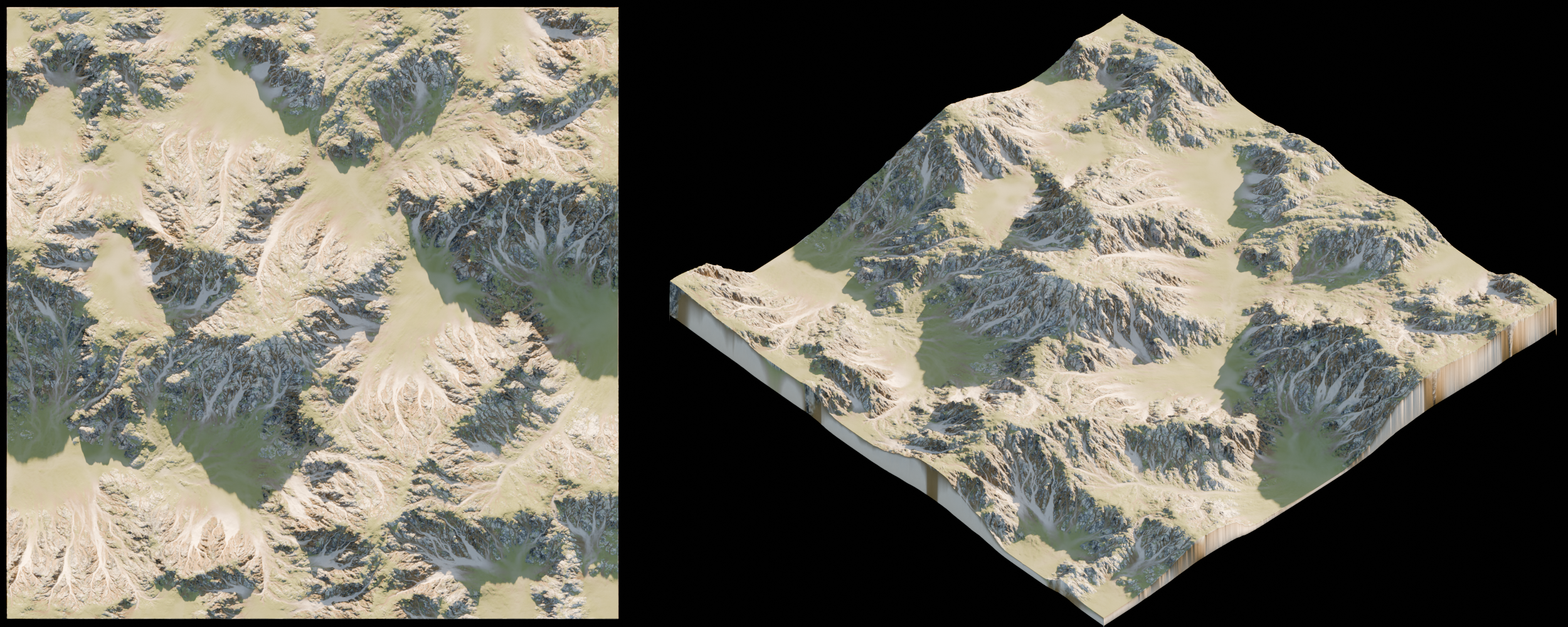
An image using the sediment (darker soil) and water level (lighter soil) attributes to add detail to the scene.
You can type these into an attribute node in the shader nodes or shader section of TrueTERRAIN.
Sediment Amount
Erosion Sediment Amount_terrain_tvfx
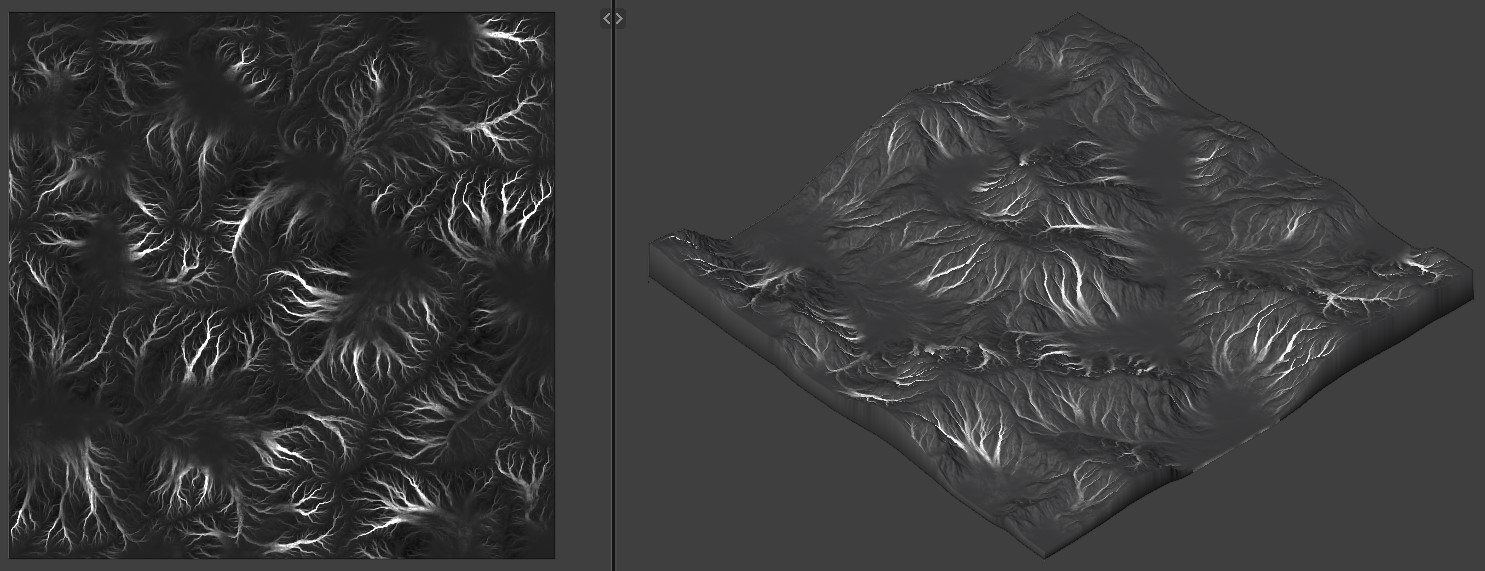
The amount of sediment that has been deposited at each vertex. Good for creating scree like effects
Water Level
Erosion Water Level_terrain_tvfx
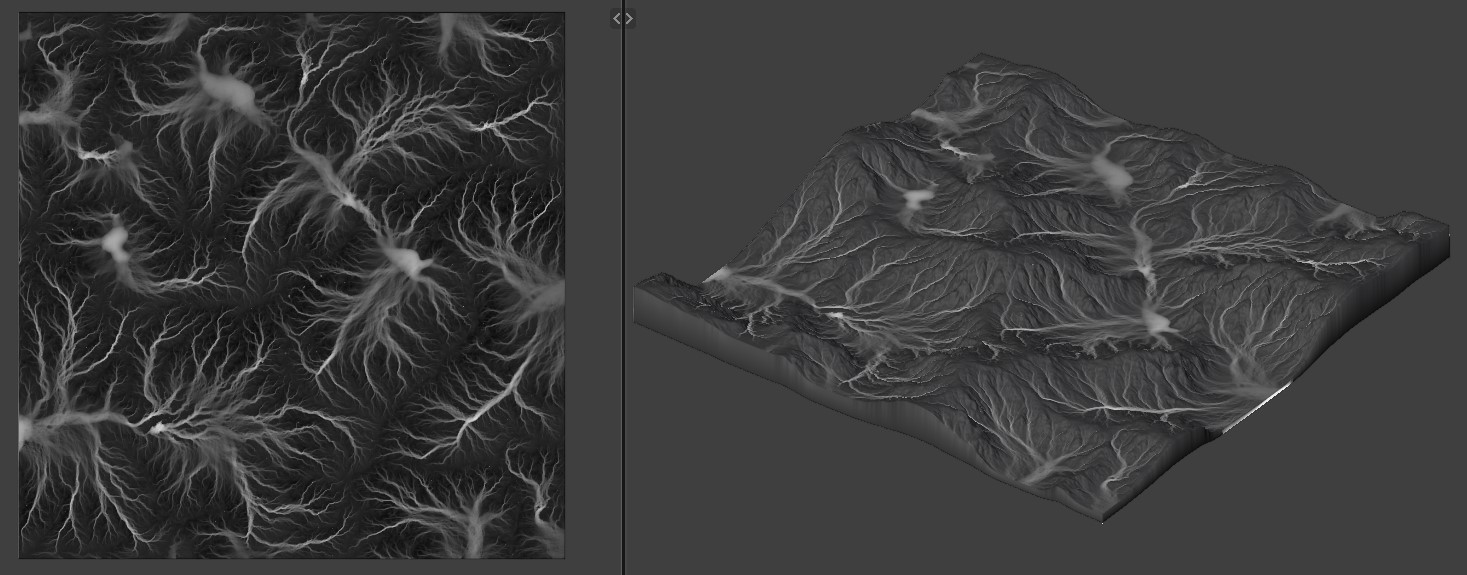
The height of the water at each vertex. Only when Water Mesh is generated and only stored on the water mesh for the assigned water material
Water Velocity
Erosion Water Velocity_terrain_tvfx
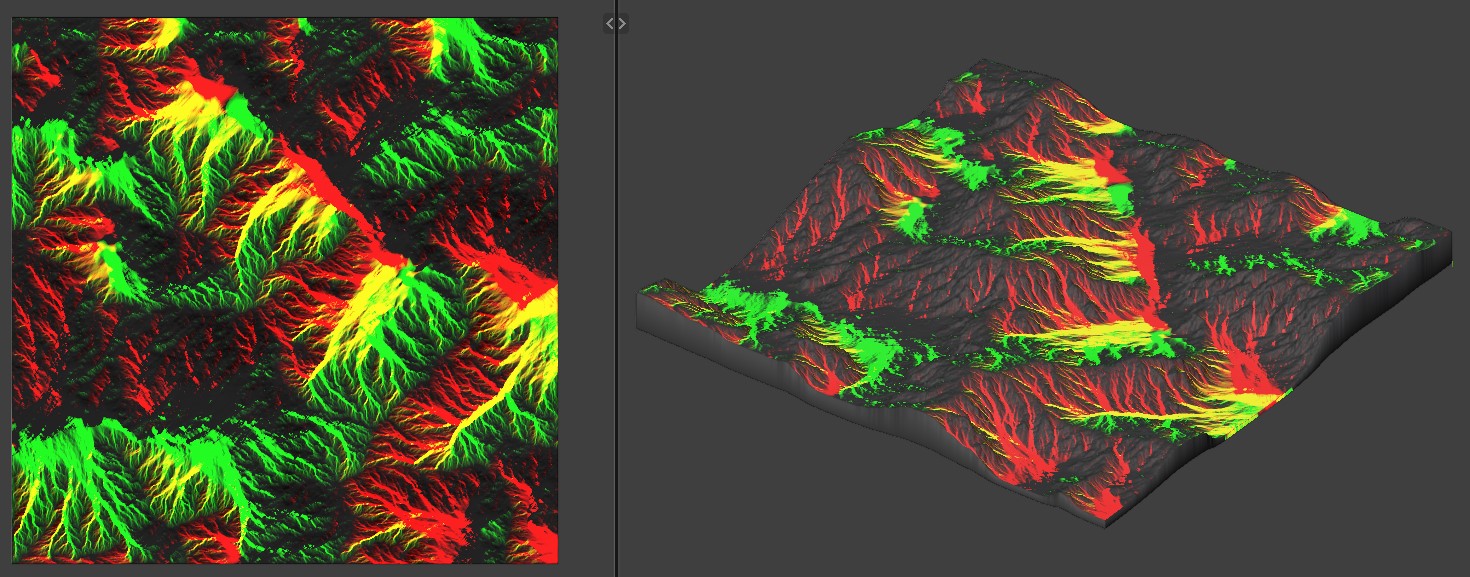
The velocity of the water at each vertex. Only when Water Mesh is generated and only stored on the water mesh for the assigned water material