Store as Attribute

Mask from terrain saved and used as the mask for shader.

Masks in Geometry and Scatter sections can be stored and used in other sections. So you can mask out a section for mountains in Geometry, store the mask(s) and use them in the Scatter and Shader sections with an Attribute Mask to automatically mask relevant assets to that same section. And anytime you change the mask in the Geometry the other sections will update automatically!
Info
Masks stored in Geometry can be used in Scatter and Shader sections. Masks stored in Scatter can only be used in Shader.
You will find two Store as Attribute toggles in the mask section. One above the mask layer list and one below. The one above will store all masks in this layer while the one below will only store the active mask.
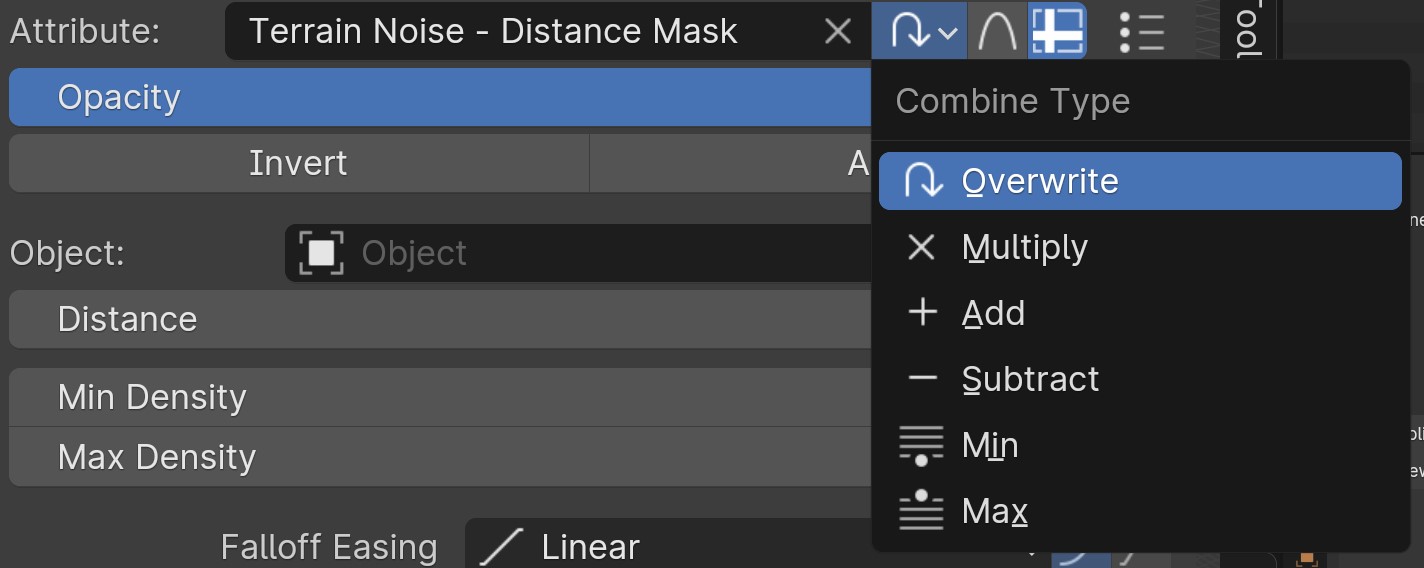
To store mask(s) enable the Store as Attribute toggle as seen in the image above. Once enabled you'll have the option to name or rename the attribute, decide how this mask is combined with previous masks assigned to the same attribute by name, and if you would like to clamp the attribute between the values of 0 and 1.
Warning
Where you use an attribute matters. An Attribute Mask in Shader set to the same attribute as in Scatter may have different results depending upon what other masks attribute to it and come afterwards.
Adding to Existing Attributes
Once you have stored an attribute you can actually add the output of other masks to it by enabling Store as Attribute, choosing the existing attribute in the Attribute Name dropdown instead of inputing a new name, and then changing the Combine Operation to something other than Overwrite.
Settings
Attribute Name
This is the name of the attribute. This is what you will search for in the attribute mask to reuse it.
Show Data
Clamp
Ensure your mask values are from 0-1 only. This is not always desired and therefore not on by default though most masks themselves keep their values between 0-1 only.
Mask Description
This input is for helping to provide yourself details later on what this mask is doing in the overall scheme of the attribute.
Combine Operation
Overwrite
Overwrite any other masks prior to this mask.
Multiply
Multiply this mask with the previous masks assigned to this attribute.
Add
Add this mask to the previous masks assigned to this attribute.
Subtract
Subtract this mask from the previous masks assigned to this attribute.
Min
Choose the smaller of the values between this mask and prior assigned masks.
Max
Choose the larger of the values between this mask and prior assigned masks.
Sources
Clicking this will open up a popup of all the masks that are combined to form the mask. Here you can edit any of the masks attributing to the attribute's result.