Asset Browser
All TrueTERRAIN materials and scatter objects can be easily added into Blender's asset browser for easy access. We even have it setup for so that you can add new layers onto the TrueTERRAIN object for materials and scatter by dragging and dropping from the asset browser!
Setup TrueTERRAIN with Asset Browser

- In the TrueTERRAIN addon preferences you'll find a new button next to Import Packs called Setup Asset Browser.
- This will set up all of your current assets as asset browser assets
- Once the spinner disappears and the button reads Done you can see all your TrueTERRAIN assets in the asset browser ready to be used like normal or as drag-and-drop layers for TrueTERRAIN
Import from Previous will now also import assets from TrueTERRAIN 4.x into the asset browser
TrueTERRAIN in the Asset Browser
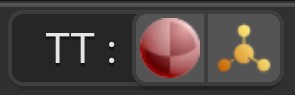
Open Library
Quick access to open a TrueTERRAIN asset browser library (material or scatter)
New Group/New Layer

Add in a new group if a material asset is active or a new layer if an object asset is active
Drag and Drop

Yes, just like with the Asset Browser dragging and dropping TrueTERRAIN assets from the Asset Browser into your scene will add TrueTERRAIN layers appropriate to the asset type. Scatter layers will be added for TrueTERRAIN Object assets and shader layers will be added from TrueTERRAIN Texture or Material assets.
When a TrueTERRAIN Library is Active
From these libraries (libraries that are displayed when clicking one of the Open Libraries buttons) drag and drop is enabled by default for adding TrueTERRAIN assets into your scene as layers in their respective areas
Quality
Select the resolution for shader textures or quality level of objects of the active asset
Category/Subcategory

Filter TrueTERRAIN assets by their categories and subcategories
Search
Filter TrueTERRAIN assets by their names
When a Non-TrueTERRAIN Library is Active
Select any object or material even those that aren't installed as a TrueTERRAIN asset and you can add it to your scene

Add as TT Layer
When a material asset is active you can click this button to add the active material as a shader layer on the active object.
Scatter Selected
When an object asset is active click this button to add it to the active Scatter Layer as a new Scatter Object. Click New Layer first then Scatter Selected in order to add it in as a new layer
Drag and Drop (Non-TrueTERRAIN Assets)
This will act like normal when using the asset browser. So if you drop a material onto an object it will add that material to the object like normal. It will not apply it as a TrueTERRAIN shader layer. If you drag and drop an object it will add a single object to the scene where you drop it.